
Shell Views and Kiosk Mode
On the Visualization screen, the frame around the animation — project picker, page navigation, title, clock, alarm indicators — is not fixed. It is called a shell, and it can be changed. Because inSCADA’s own menu and top bar can be switched off as well, one installation can be presented as an interface built for the plant.
This changes nothing about the animation itself. The mimic is the same mimic; only the room it sits in changes.
The shells available
Section titled “The shells available”| Shell | Layout | Alarm severity vocabulary |
|---|---|---|
| inSCADA | Project bar + tab strip (the default) | High / Medium / Low / Diagnostic |
| OpenBridge | Maritime design language; navigation menu opened with ☰ | Alarm / Warning / Caution (IEC 62288) |
| Gravitas | Left icon rail + status bar carrying its own palette | High / Medium / Low / Diagnostic |
The severity is the same stored value in every shell; only the naming changes. OpenBridge speaks the maritime standard’s vocabulary, the others speak the plant operator’s.
inSCADA (default)
Section titled “inSCADA (default)”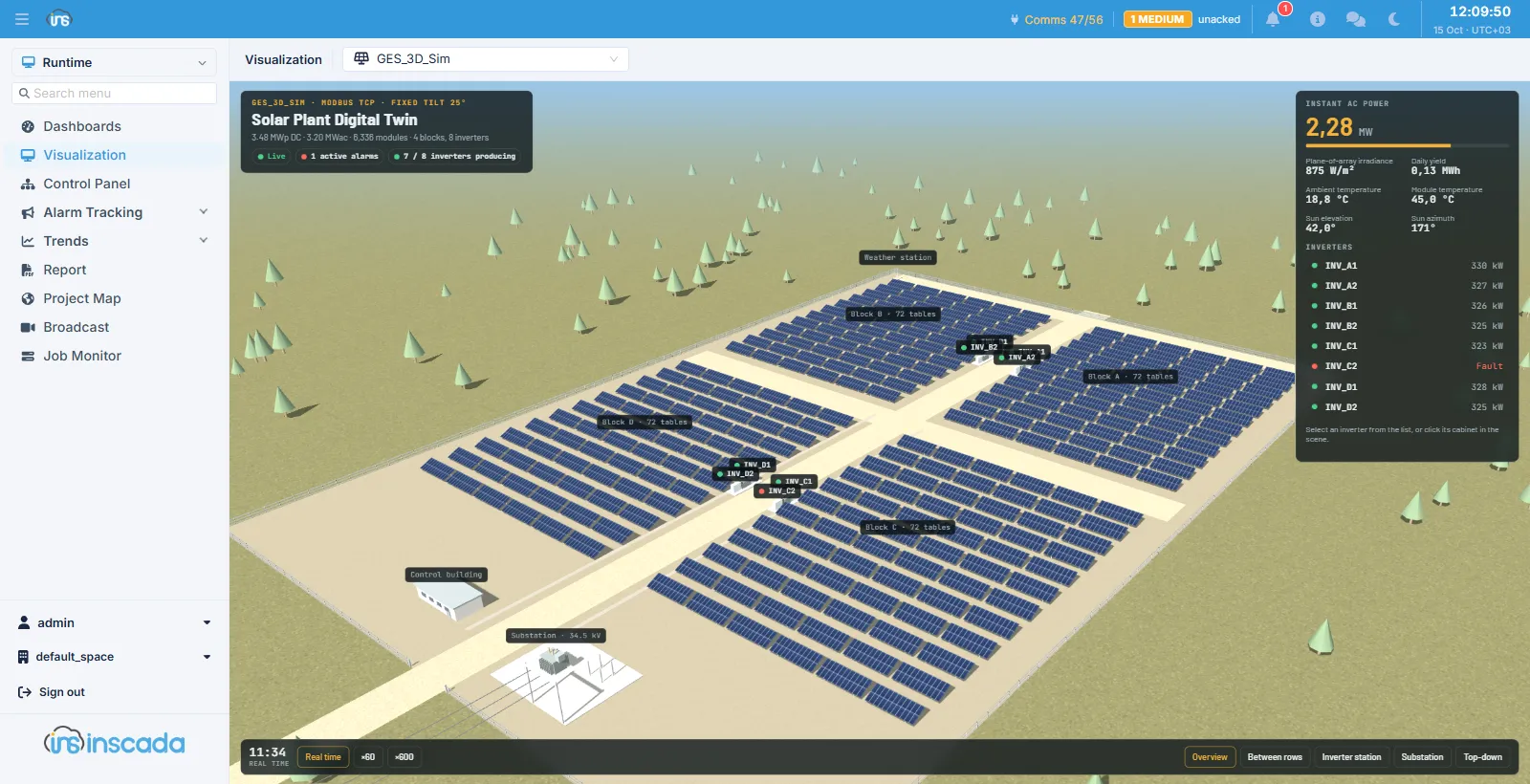
OpenBridge
Section titled “OpenBridge”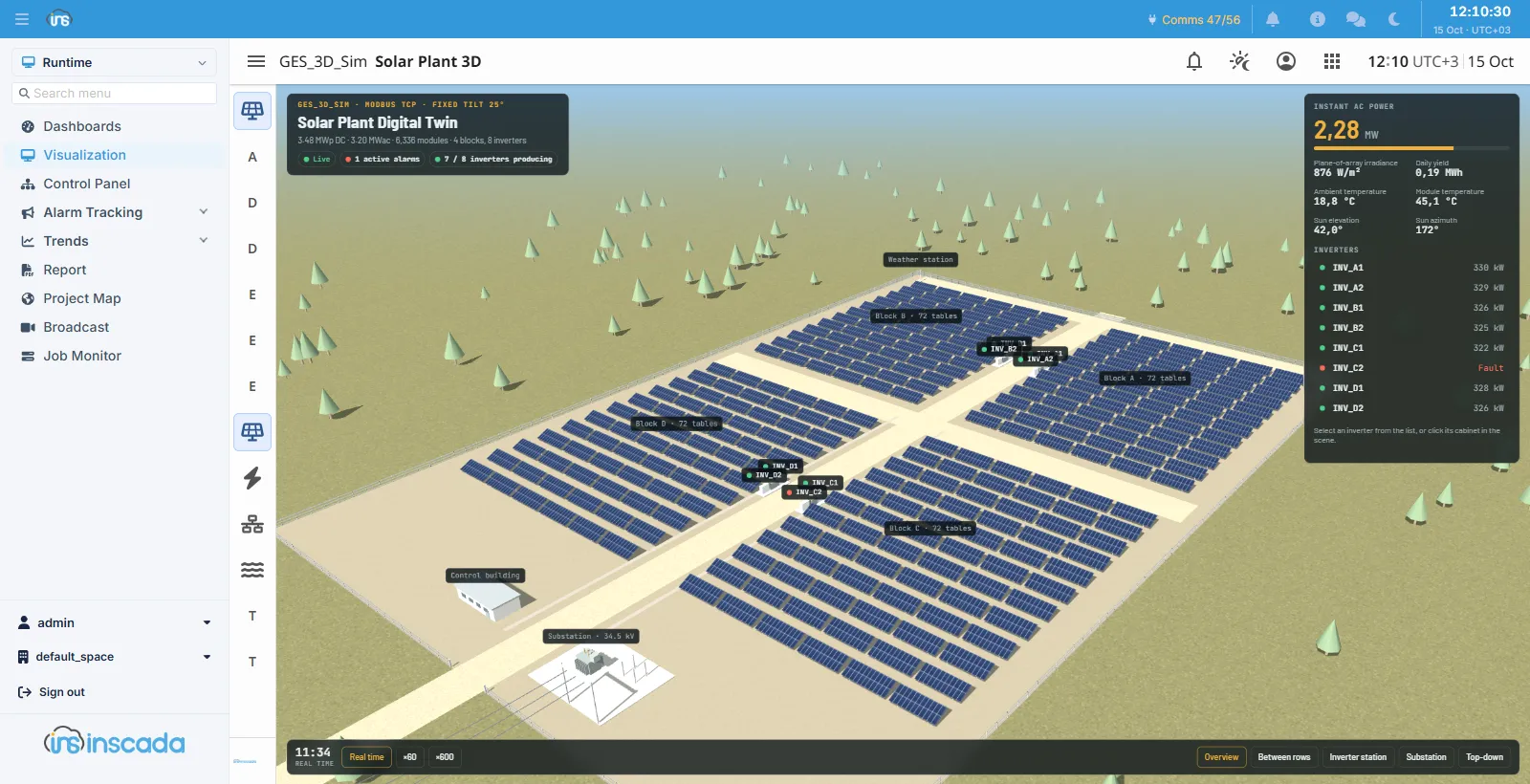
Gravitas
Section titled “Gravitas”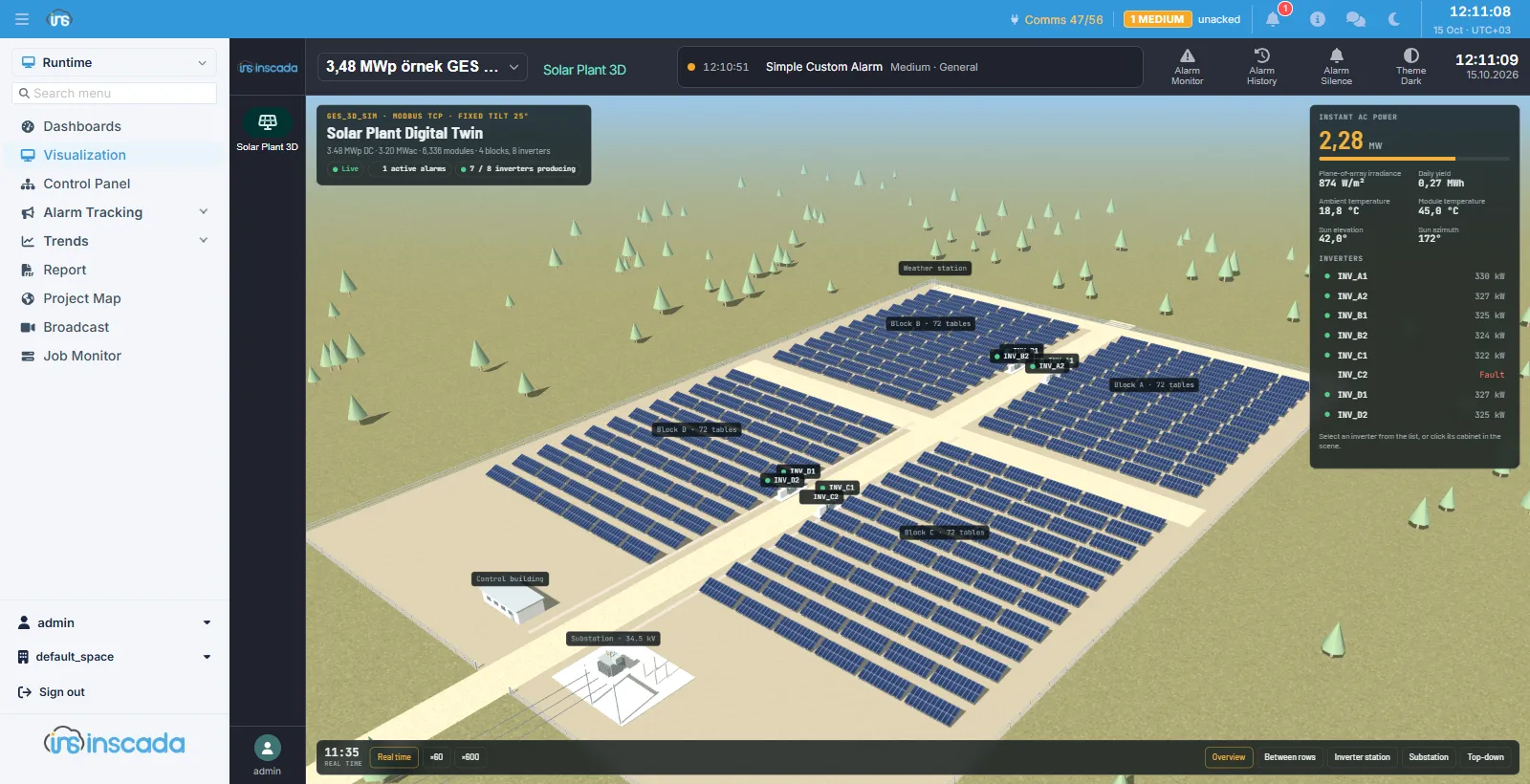
Choosing a shell
Section titled “Choosing a shell”There are two ways, and both are per terminal — a shell choice is not written to the project or the space, it is kept in that browser.
- The right-click menu. Right-click on the mimic and pick from the Shell group at the bottom of the menu. The choice is remembered on that terminal.
- The address.
/visualization?shell=gravitas— a value in the address overrides the saved choice and is stored as the new one. This is how a kiosk terminal is pinned with a bookmark.
Valid values: native, openbridge, gravitas.
Switching off inSCADA’s own frontend
Section titled “Switching off inSCADA’s own frontend”Changing the shell changes the frame; the blue top bar and the side menu stay where they are. There are two ways to remove those as well.
Temporary: the right-click menu
Section titled “Temporary: the right-click menu”Right-click on the mimic:
- Hide all bars — the top bar, the side menu and the shell’s own bar close together
- Hide top bar / Hide side menu / Hide shell top bar — individually
This choice is not stored: the bars come back when the page is reloaded. It suits an operator widening the screen for a moment, not a permanent installation.
Permanent: the embed parameter
Section titled “Permanent: the embed parameter”/visualization?shell=gravitas&embed=1embed=1 switches off the application’s own frame (top bar + side menu) for the whole session.
It stays off across a reload, and across navigating to another screen within that session. What
is left is the chosen shell and the mimic:
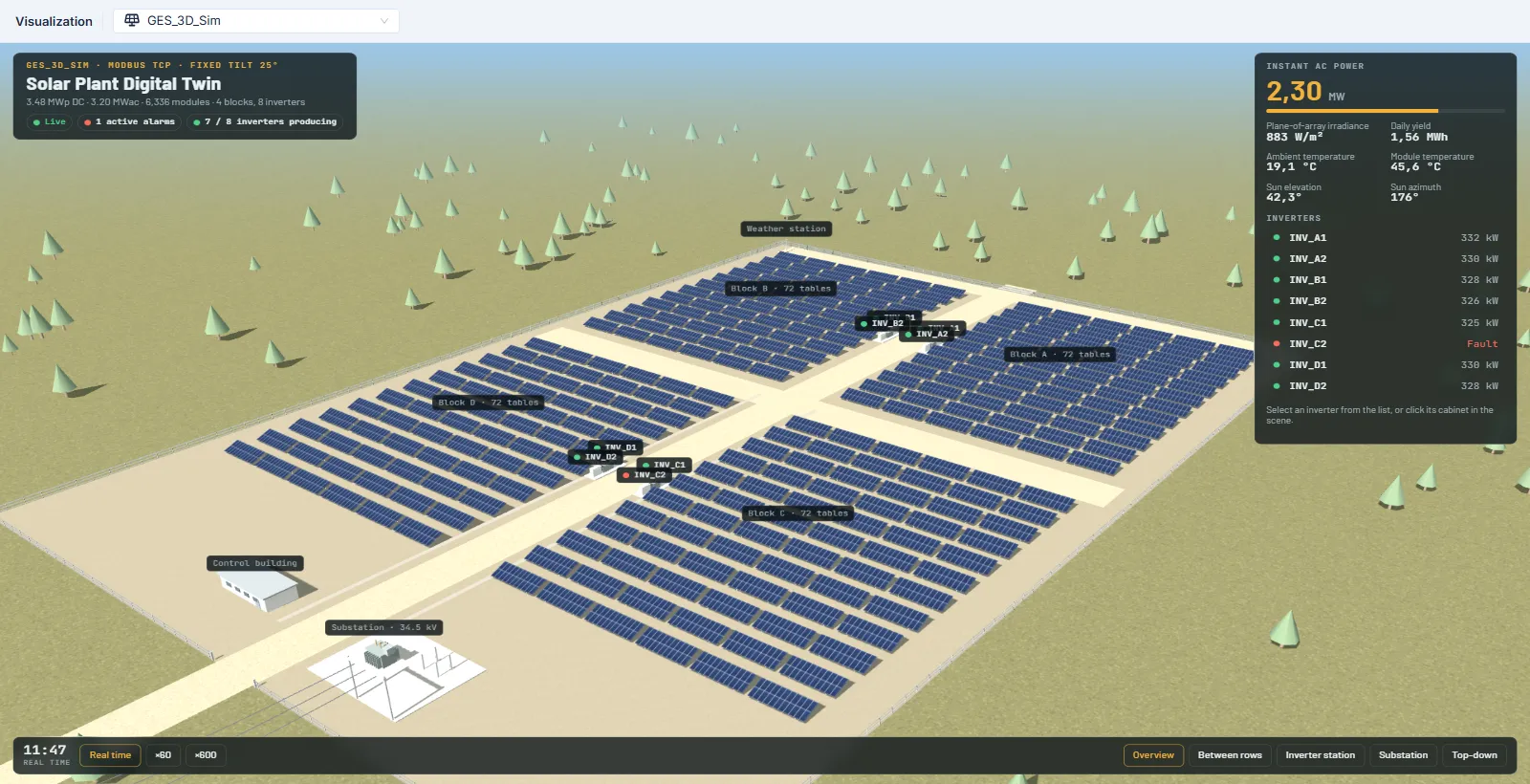
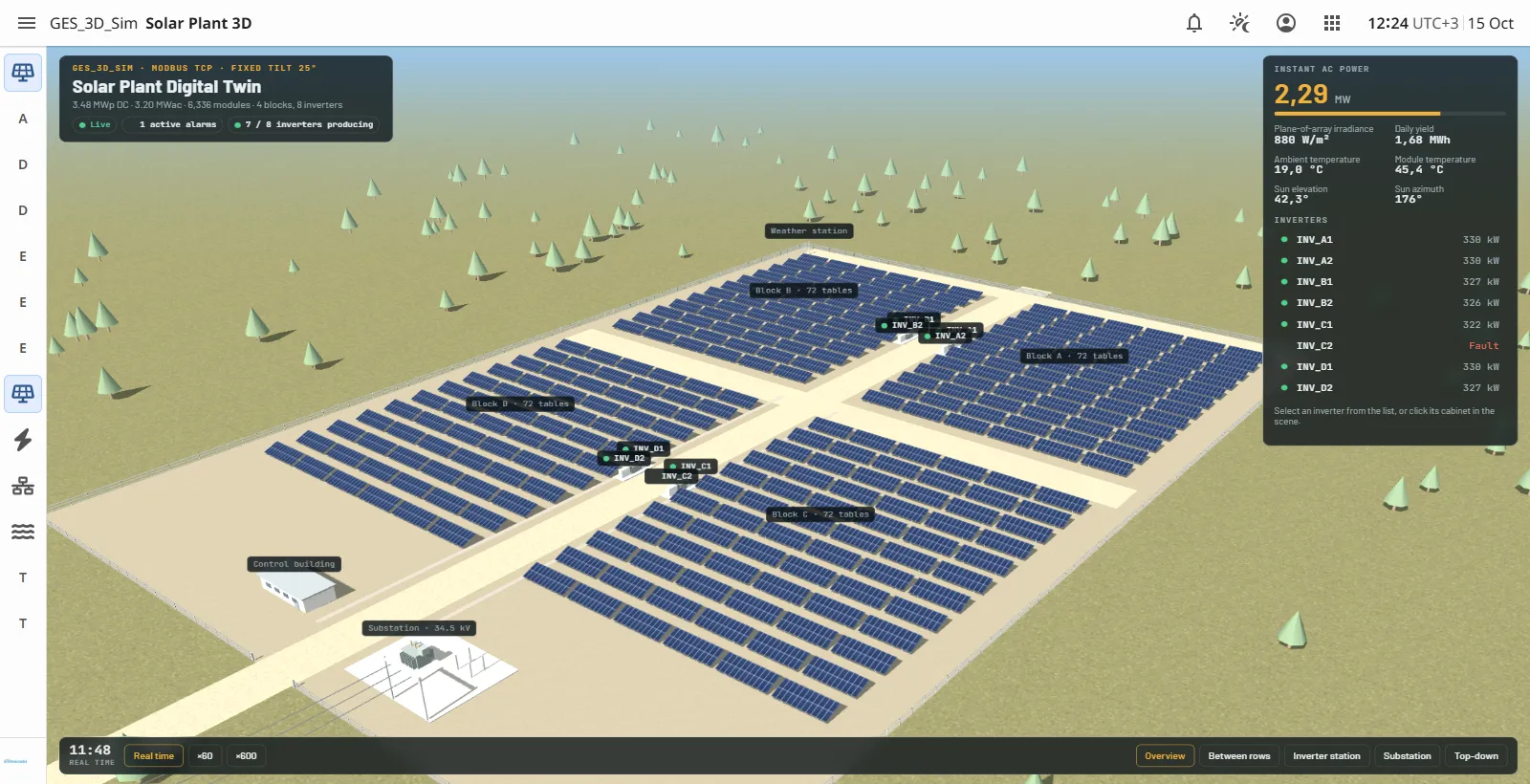
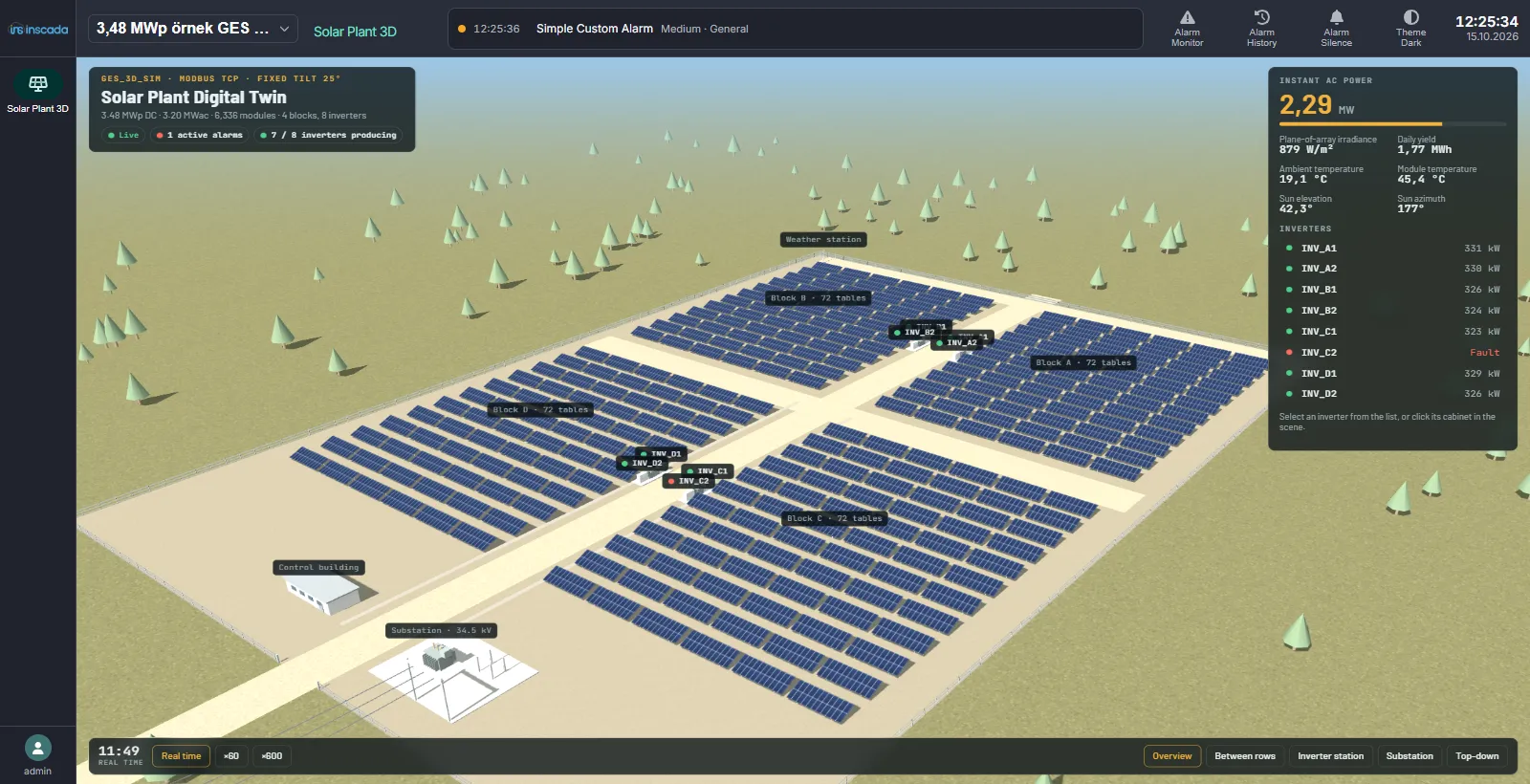
All three shells behave the same way — what is left is that shell’s own frame, and nothing else.
inSCADA — only the project bar remains:
OpenBridge — its own top bar and navigation rail:
Gravitas — its own palette, alarm strip and left rail:
In this mode the right-click menu offers only the Shell selector: there is no longer any chrome for the other toggles to act on.
Setting up a kiosk terminal
Section titled “Setting up a kiosk terminal”- Prepare the project and the pages the terminal will use — a shell lists the animations marked as main in that project.
- Build the address:
…/visualization?project=<project-id>&shell=<shell>&embed=1. Withoutproject, the terminal opens whichever project was last selected — or the first in the list when there is none — which is not something to leave to chance on a kiosk. Add&name=<animation-name>to open on a specific page. - Remove the project picker too, if needed:
&lockProject=1. The shell hides the project selector and shows the project name as a static title instead. - On a multi-page project, put the page-loading behaviour in the address:
&tabMode=lazy(only the open page is loaded — lightest on a slow link),keepalive(a page stays loaded once visited, switches are instant),preload(every main page loads at startup). Without it,keepaliveapplies. - Put the address in the browser’s bookmark or in its kiosk-mode start page.
Every loaded page runs its own live-data poll; keepalive and preload buy smooth switching
with bandwidth.
Example: showing a Custom HTML page full screen
Section titled “Example: showing a Custom HTML page full screen”The 3D plant model in the screenshots above is not an animation, it is a Custom HTML page. Because what a shell lists is animations, one step sits in between:
-
Create an animation in the same project. Its SVG can be a single rectangle — one
rectcovering the canvas, with anid:<svg xmlns="http://www.w3.org/2000/svg" viewBox="0 0 1920 1080"width="1920" height="1080" style="width:100%;height:100%;"><rect id="scene" x="0" y="0" width="1920" height="1080" fill="rgba(127,127,127,0.10)"/></svg> -
Bind an Iframe element to that rectangle, with the type Custom Html and the page as its selection. The frame takes the rectangle’s position and size — cover the canvas and the page opens full screen.
-
Mark the animation as a main page; a shell lists only main pages.
-
Leave the animation’s background colour empty so the page follows the shell’s palette.
The result: a screen drawn with none of the platform’s own drawing tools, running full screen inside inSCADA’s data, alarms and session. The page is served from the sandbox port, so the iframe access configuration applies to it as well.
Things to watch
Section titled “Things to watch”- OpenBridge is heavy on first load. Its interface bundle is downloaded only when it is chosen, so on the first open the mimic can appear with its frame completing a few seconds later. Later opens are fast. On a kiosk terminal, do that first open once and leave it.
- The choice belongs to the terminal, not the project. Two operators can see the same project in two different shells. Where one plant wants one look, pin it through the address.
- Animations saved with “follow theme” take their background from whichever shell they sit in. The same page sits correctly on Gravitas’ dark palette and on inSCADA’s light theme; no separate copy is needed.
Related
Section titled “Related”- Visualization — the runtime screen itself
- Animations — designing the mimics
- Custom HTML — writing the page yourself
- Custom HTML and iframe Access — configuring the frame origins