
Element Editor
The Element Editor is where you bind behaviour to the SVG object you selected in the animation designer. Each binding is one animation element record: which object, what it does, and where its value comes from.
Building a screen from scratch is covered on the Animation page; this page is about the editor itself.
Selecting an object
Section titled “Selecting an object”You select by clicking an object on the SVG in the designer. SVGs usually keep their objects inside <g> groups, and a plain click selects the outermost group.
To target an object inside a group, hold Ctrl while clicking — you then get the text, rect or circle you actually clicked rather than the group. This is the usual way to bind the value text inside an equipment symbol.
The Inspector panel
Section titled “The Inspector panel”Selecting an object shows it in the Inspector panel on the right.
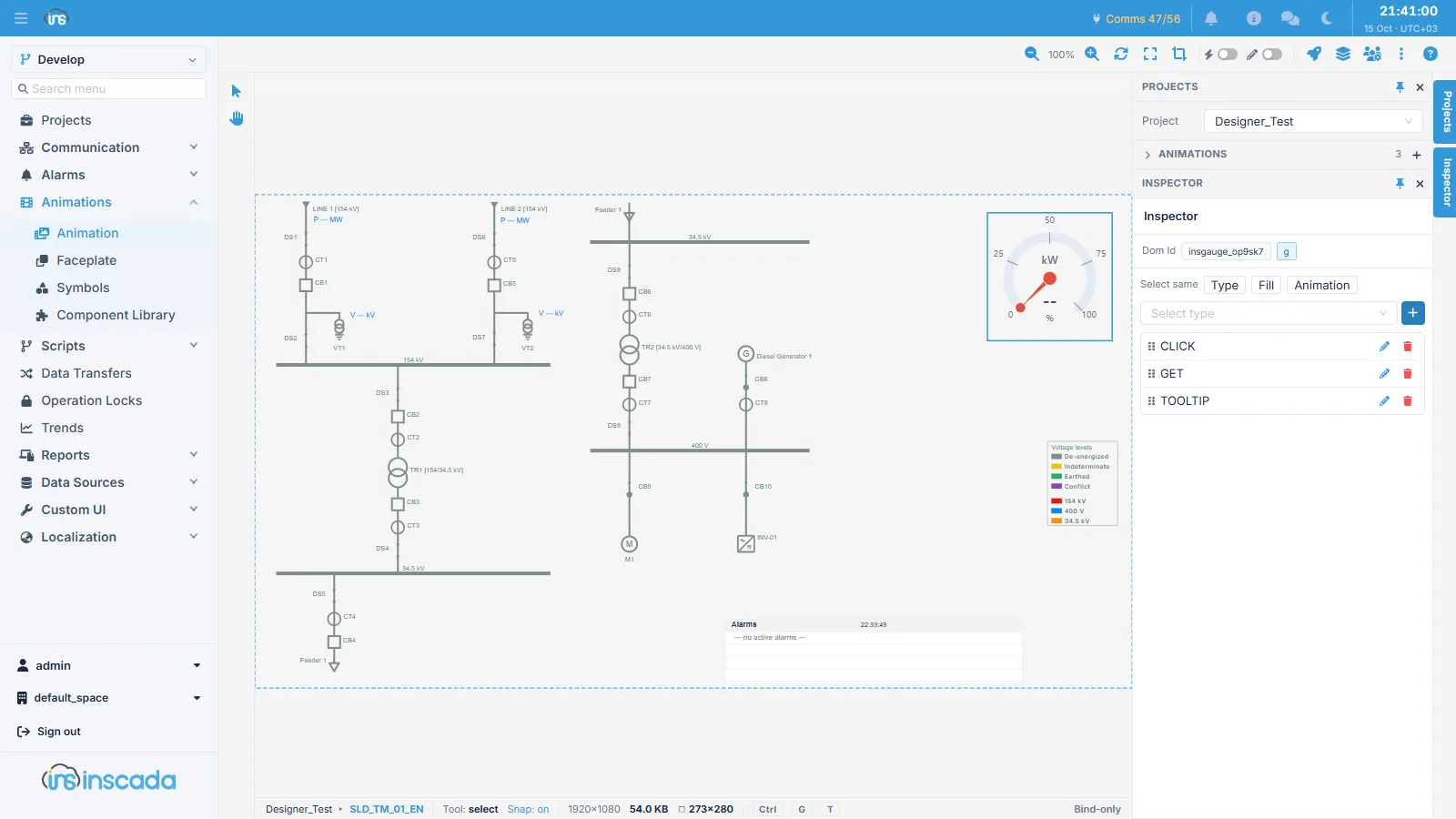
The panel holds:
| Part | What it is for |
|---|---|
| Dom Id | The selected object’s id, with its SVG tag beside it (rect, text, g…) |
| Select same | Selects every object sharing the same Type, Fill or Animation |
| Select type | The list you pick the new binding’s type from; the + beside it adds the binding |
| The binding list | The bindings already on this object. The pencil opens the form, the bin deletes the binding |
The tag badge beside the id (g in the screenshot above) is not merely informative: it tells you what the type list is being filtered by.
Fields
Section titled “Fields”| Field | Description |
|---|---|
| DOM ID | The selected object’s SVG id — filled in automatically |
| Type | What the object does |
| Expression Type | Where the value comes from |
| Expression | The value itself — a variable name, an expression, or a configuration |
| Props | Visual settings specific to the type (colour, limits, orientation, speed…) |
| Status | Active / inactive. Inactive elements are left out of the evaluation loop |
Why the type list changes
Section titled “Why the type list changes”The editor filters the type list by the SVG tag of the object you selected, because not every type means anything on every object.
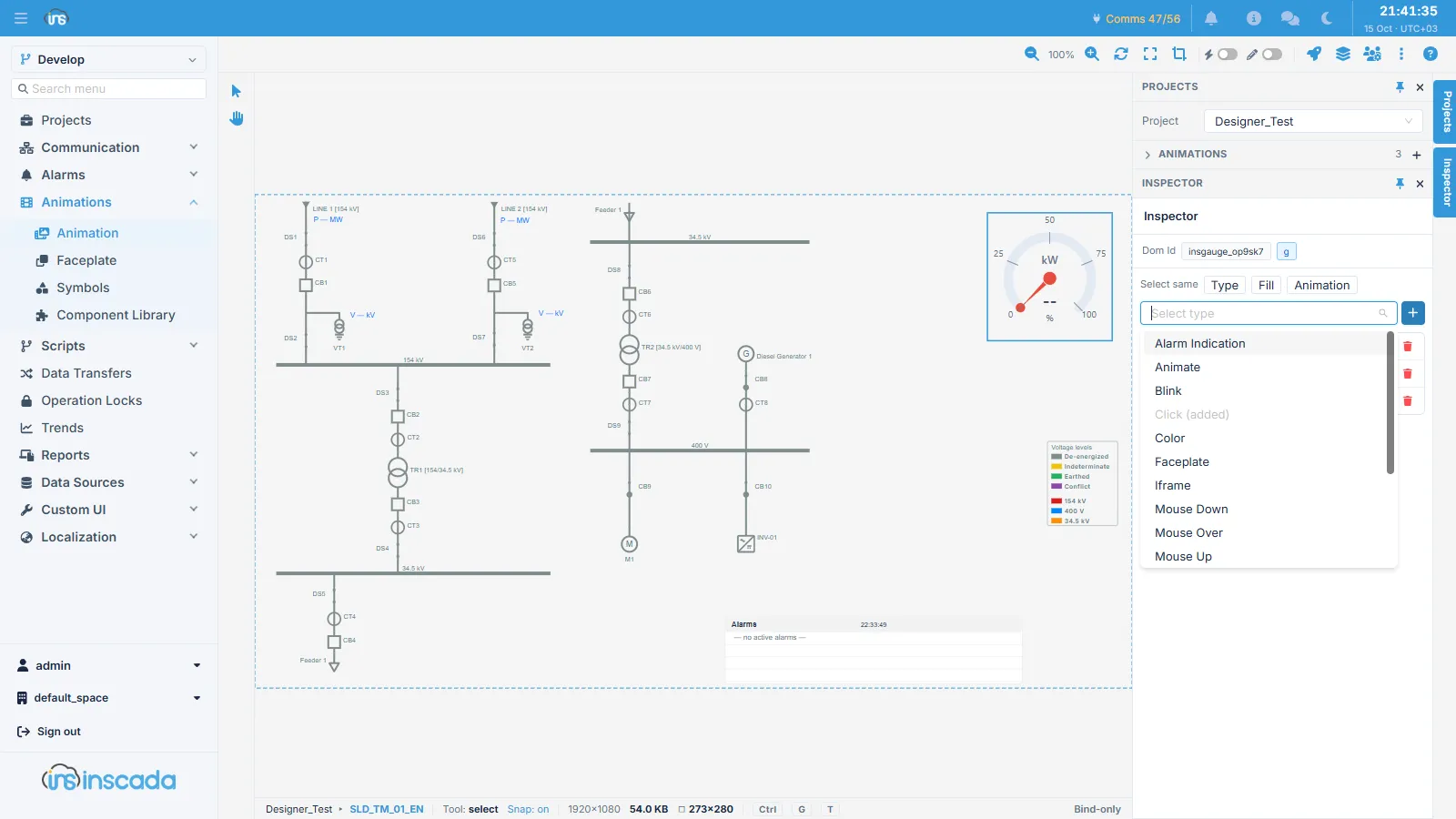
Click (added) is greyed out in the list above: that type is already bound to this object. The same type cannot be bound twice to one object.
The fourteen base types, available on any object, are:
Color · Rotate · Move · Opacity · Scale · Blink · Bar · Pipe · Tooltip · Alarm Indication · Click · Mouse Up · Mouse Down · Mouse Over
Added according to the object:
| SVG object | Also offered |
|---|---|
text, tspan | Get |
rect | Chart, Datatable, Iframe, Image, Slider, Get Symbol, Faceplate, QR Code |
g (group) | Animate, Iframe, Faceplate — while Bar drops off the list |
image | Iframe |
There are twenty-four types in all; the full list is on the Animation page.
Expression types
Section titled “Expression types”The expression type decides where the value comes from, independently of the animation type: the same Color binding can take its value straight from a tag or from an expression.
| Type | Where the value comes from |
|---|---|
| TAG | A variable, directly |
| EXPRESSION | An expression you write |
| NUMERIC | A fixed number |
| TEXT | Fixed text |
| SWITCH | A lookup table keyed on the value |
| SET | Writing to a variable (with interaction types) |
| TETRA_COLOR | A four-state colour mapping |
| ANIMATION | Another animation |
| FACEPLATE | A faceplate |
| SUBVIEW | A sub-view |
| CUSTOM_HTML | A Custom HTML page |
| ALARM | Alarm state |
| ROLE | The user’s role — display driven by role |
| HARD_LOCK | Hardware lock state |
Examples
Section titled “Examples”TAG — the variable name is all it takes:
temp_valueEXPRESSION — formatting:
var val = ins.getVariableValue("temp_value");return val.value.toFixed(1) + " °C";EXPRESSION — conditional colour:
var temp = ins.getVariableValue("temp_value").value;if (temp > 80) return "#FF0000";if (temp > 60) return "#FF8800";return "#00CC00";SWITCH — mapping a value to a result:
0 → Stopped1 → Running2 → Fault3 → MaintenanceProps, and props at run time
Section titled “Props, and props at run time”Visual settings normally live in the element’s Props field: min/max and fill colour for a Bar, line width, flow speed and direction for a Pipe.
On Bar and Pipe elements you can leave that to run time instead. When an EXPRESSION returns an object, the fields on that object are used in place of the stored props, and the state is read from value:
var running = ins.getVariableValue('motor_lamp') == 1;return { value: running, fillColor: running ? '#04B3FF' : '#999999', speed: 2000, strokeArray: 10};One expression thus drives whether the pipe is flowing and what colour and speed it flows at.
Interaction types
Section titled “Interaction types”Click, Mouse Up, Mouse Down and Mouse Over display nothing — they attach an event handler to the object. They are therefore not part of the periodic evaluation loop; they run only on user interaction.
The distinction holds for access control too: for a user without access to an interaction type the handler is never attached, so the screen becomes view-only for that user on its own.
How bindings work at run time
Section titled “How bindings work at run time”While a screen is open the browser sends the server an evaluation request at the animation’s Duration. The server runs the expressions of the server-side elements on that screen in a single request and returns a result per element; the browser turns each result into the DOM operation its type calls for — writing text, changing a fill, applying a transform, driving the line flow.
What follows from that design:
- Elements are evaluated together in one request; more elements do not mean more requests.
- Only elements whose Status is active are evaluated.
- If a round does not come back within ten times
Duration, the browser starts the round again.
The types that stay out of this loop
Section titled “The types that stay out of this loop”Seven types take no part in the server’s batch evaluation:
| Type | Why it is outside the loop |
|---|---|
Click · Mouse Up · Mouse Down · Mouse Over | They display no value; they run only on user interaction |
Chart · Datatable · Slider | They render in isolated frames of their own and fetch their data themselves |
For the second group the refresh period comes from their own configuration rather than the screen’s Duration. Detail: Chart and Datatable.