
Custom Menu
A Custom Menu is a menu entry defined at space level. It links to an existing Custom HTML page or Animation, or acts as a group that holds child menus.
In the data model CustomMenu extends Menu, which means every custom menu is also a menu privilege. The two share a single UUID: custom_menu_id and menu_id are always the same value. This detail governs how visibility is configured.
Custom Menus belong to a space, not to a project. The relationship to a project is indirect, established through the project that owns the linked customHtmlId or animationId.
Fields
Section titled “Fields”| Field | Type | Required | Description |
|---|---|---|---|
| name | String (≤100) | Yes | Menu name. Cannot be changed after creation |
| contentType | Enum | Yes | Html, Animation or Group. Cannot be changed |
| icon | String (≤16384) | No | Icon descriptor JSON (see below) |
| menuOrder | Integer | No | Ordering within the menu |
| parent | CustomMenu | No | Parent menu — used for nesting |
| customHtmlId | String | Yes for Html | Custom HTML record to link. Cannot be changed |
| animationId | String | Yes for Animation | Animation record to link. Cannot be changed |
| animationParams | String (≤32767) | No | JSON parameters passed to the animation |
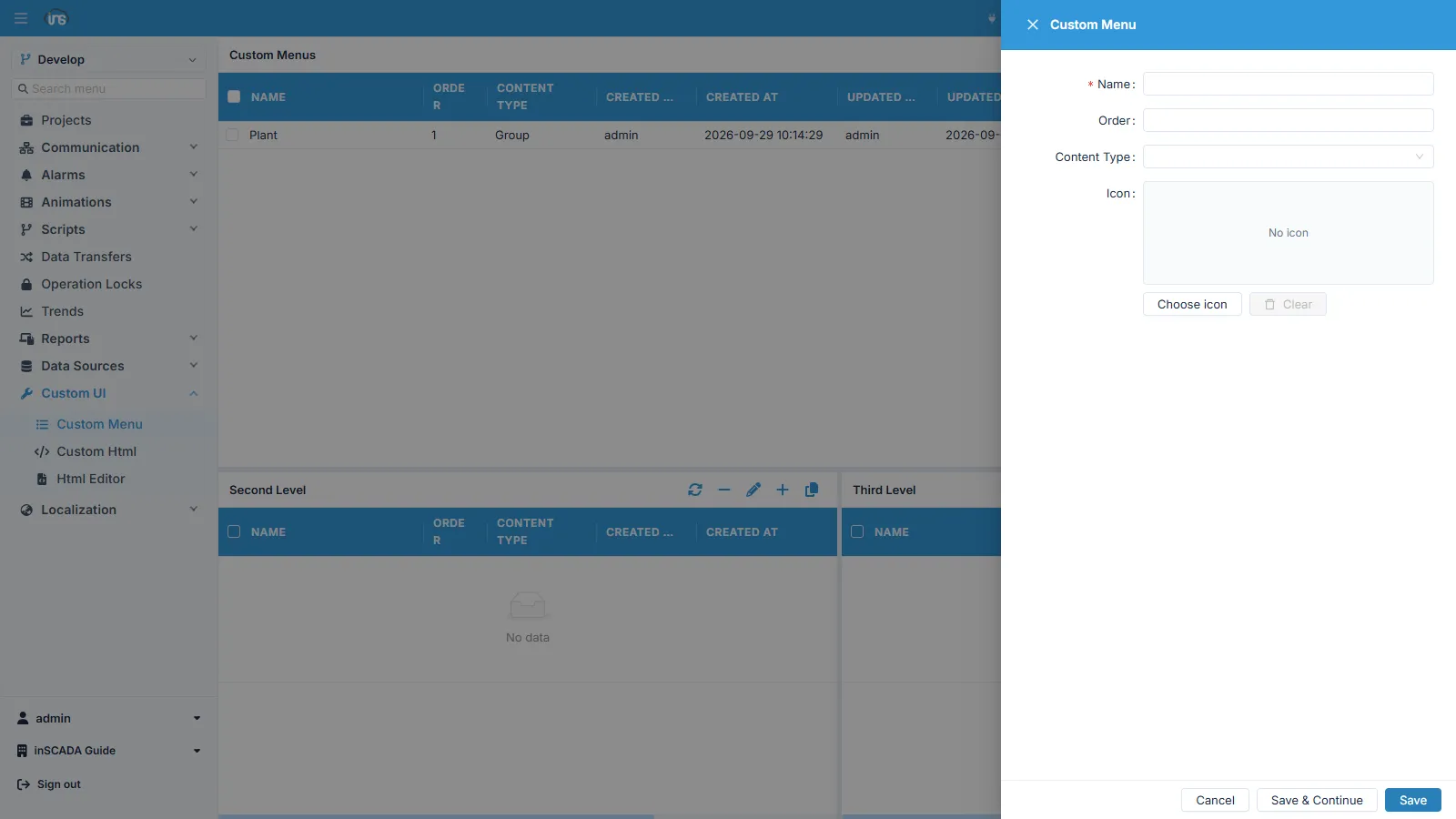
The new-menu form asks for the common fields:
Content Types
Section titled “Content Types”The ContentType enum has three values:
| Type | Required field | Description |
|---|---|---|
| Html | customHtmlId | Opens an existing Custom HTML page. The same HTML can be linked from several menus |
| Animation | animationId | Opens an existing Animation. Parameters can be passed via animationParams |
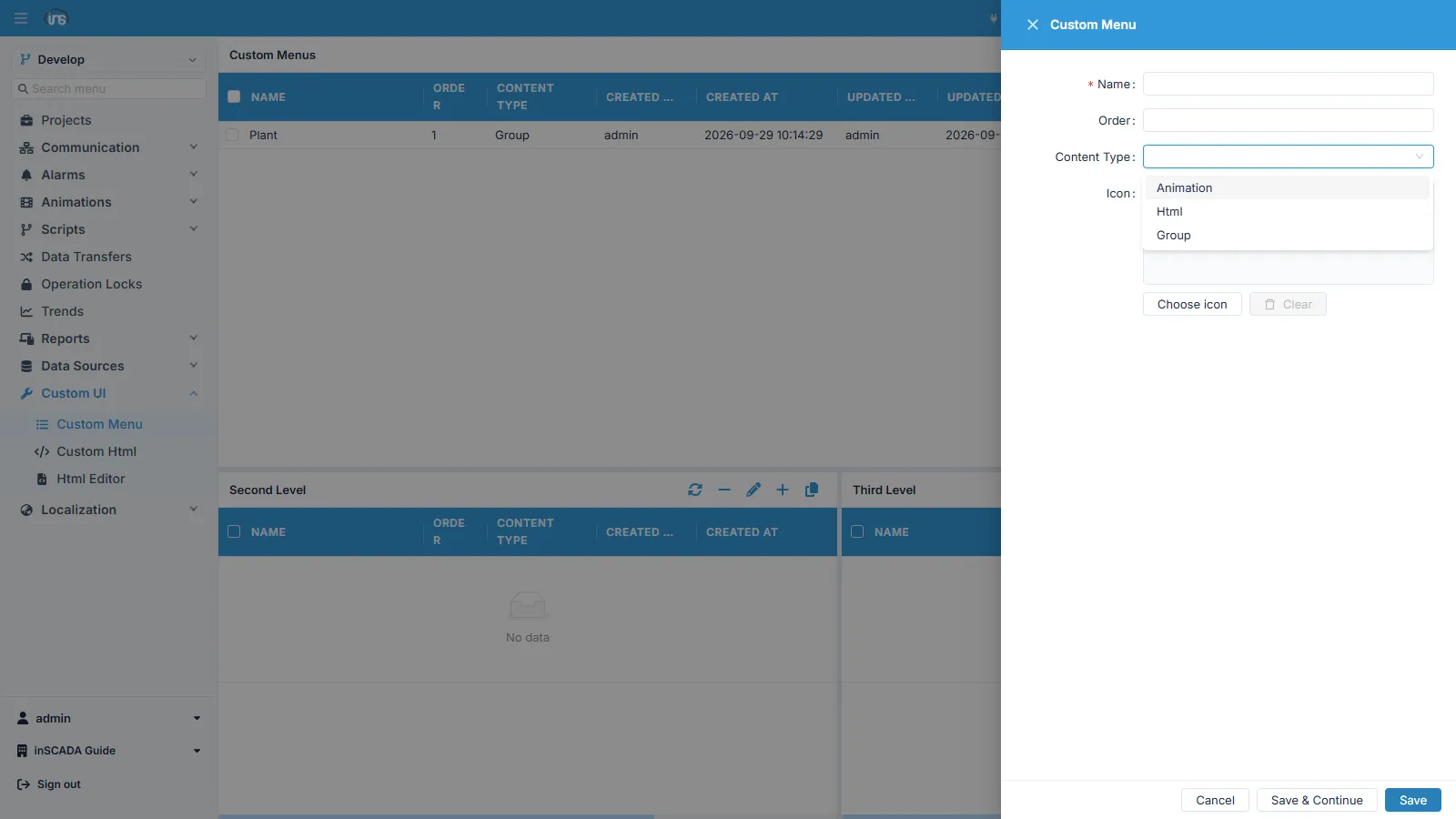
| Group | — | An empty container that holds child menus |
The form’s own list offers exactly these three:
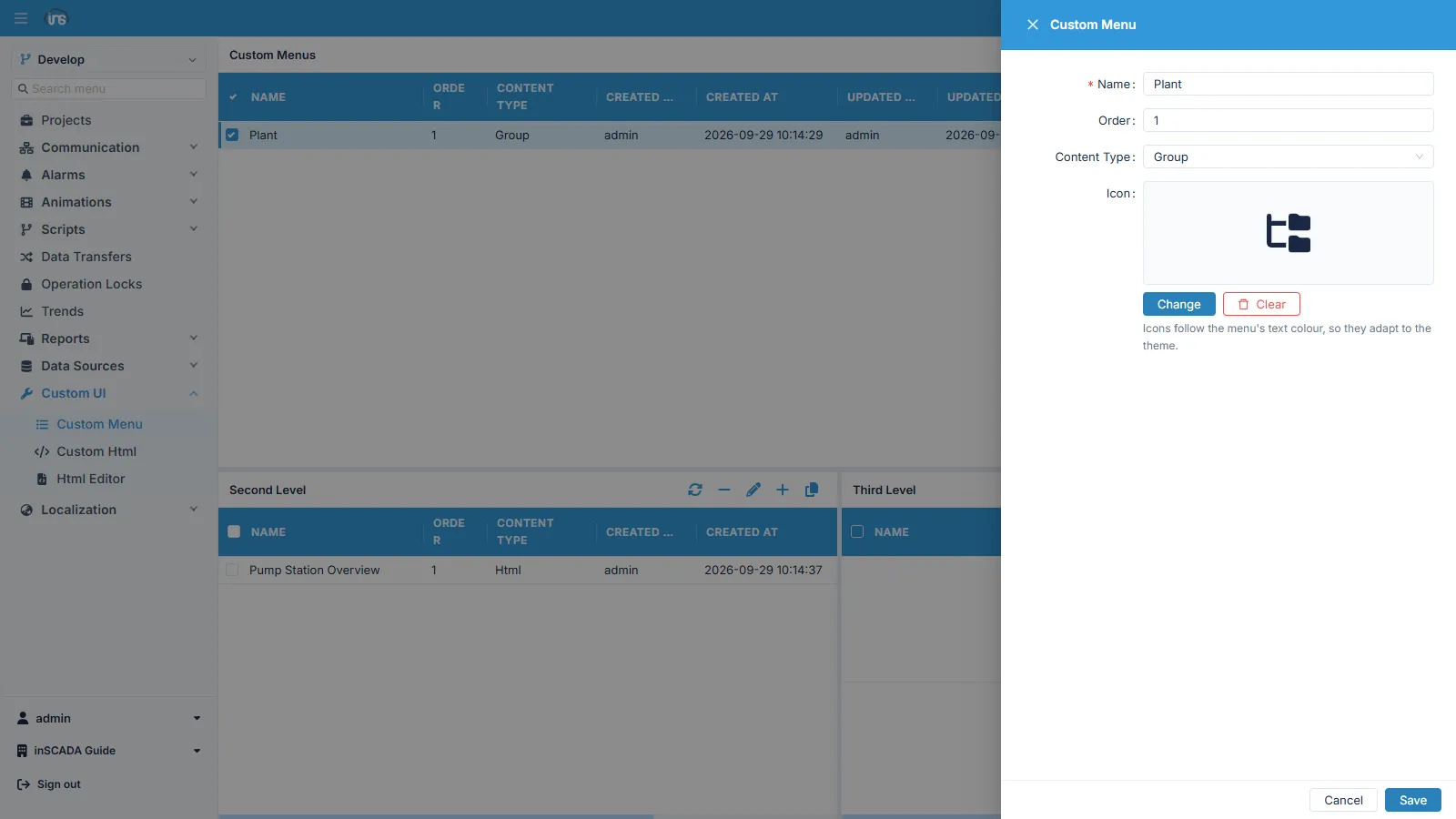
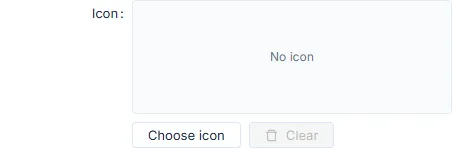
The Icon field on the menu form previews the selected icon. While none is set, Choose icon opens the library; once an icon is assigned the buttons become Change and Clear (the edit form pictured above shows that state).
The library offers four sources — FontAwesome, OpenBridge, Material Symbols and Custom — with search by name and a category filter.
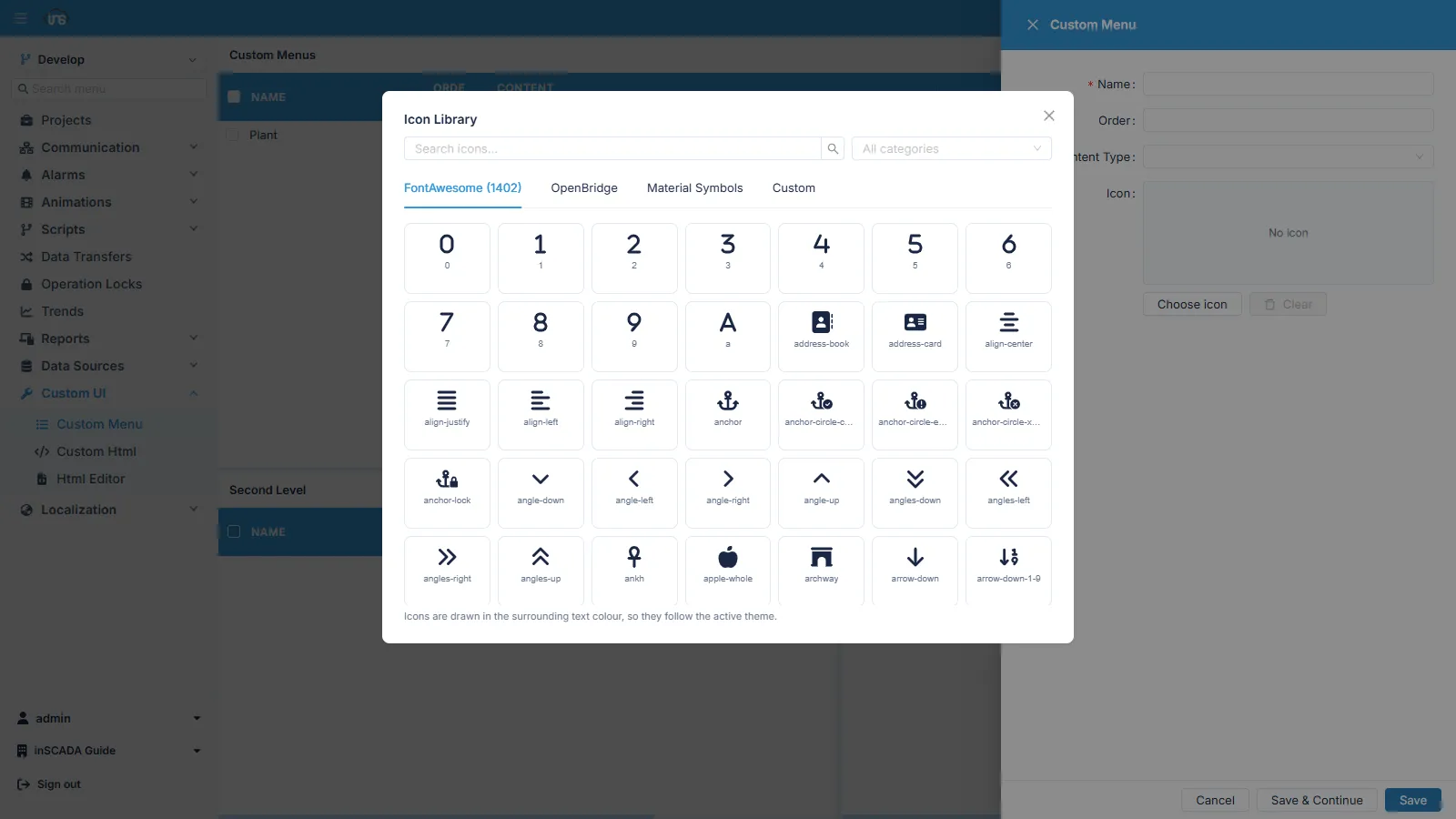
The chosen icon is stored as a descriptor JSON made up of vector paths only; it carries no colour information. This lets the icon inherit the surrounding text colour and render correctly in both light and dark themes.
Menu Hierarchy
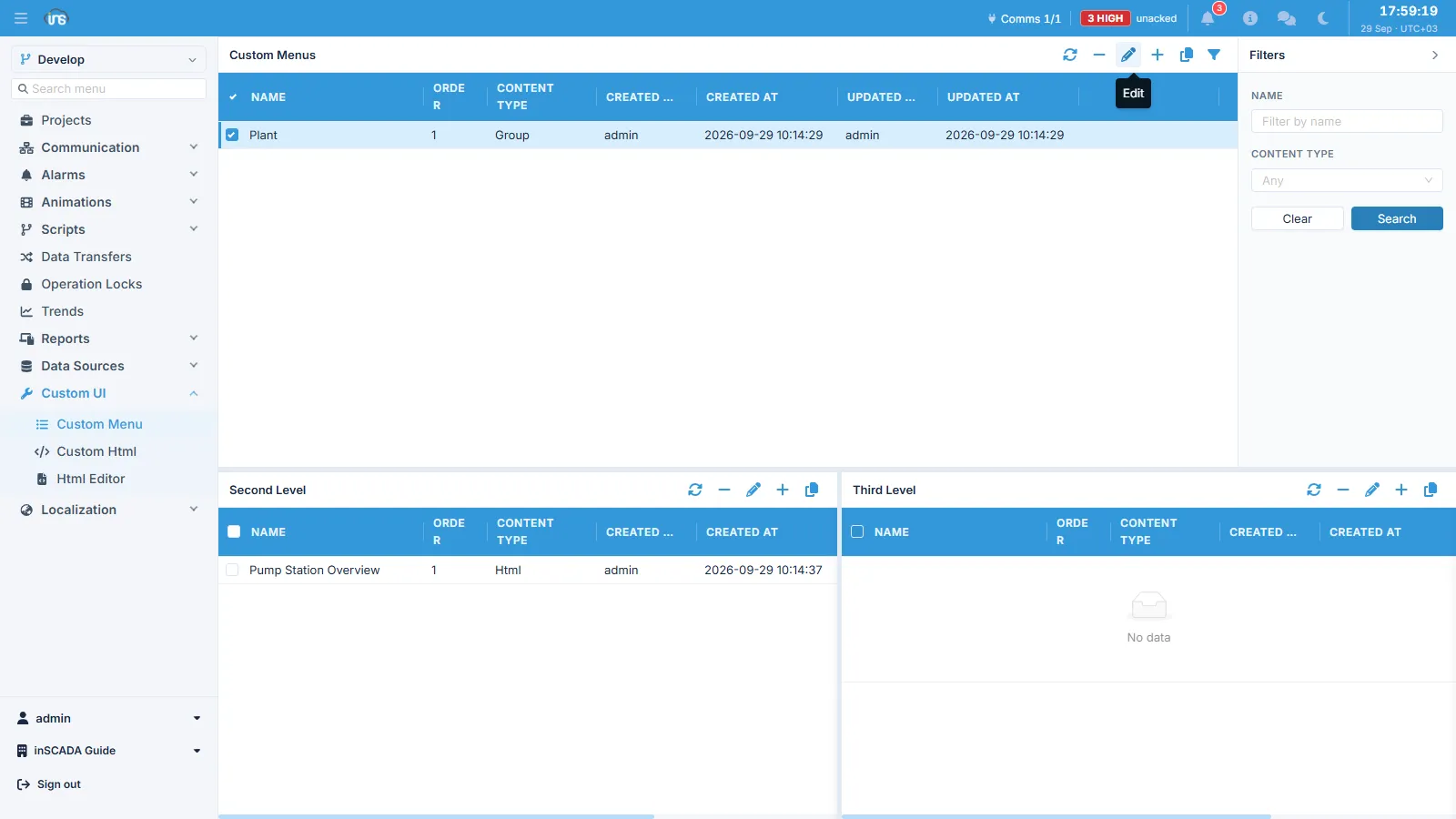
Section titled “Menu Hierarchy”Custom Menus can be nested three levels deep at most. Each level has its own endpoint:
Attempting to create a fourth level returns an error. The same level-specific logic applies to updates and deletions.
A typical arrangement:
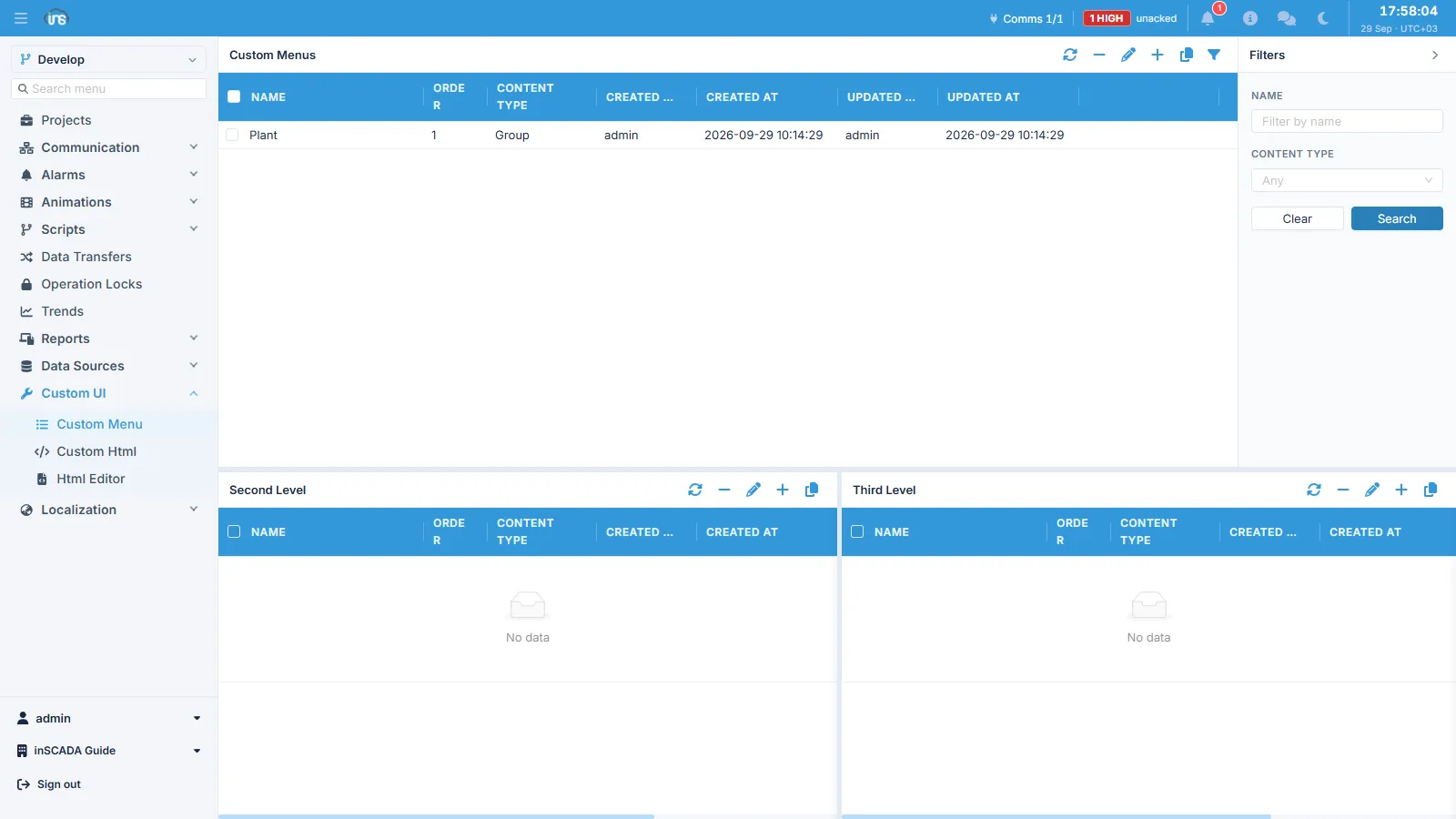
Each level has its own panel on screen. Selecting a root row lists that menu’s children in the second-level panel; selecting a row there in turn fills the third-level panel.
Html Menus
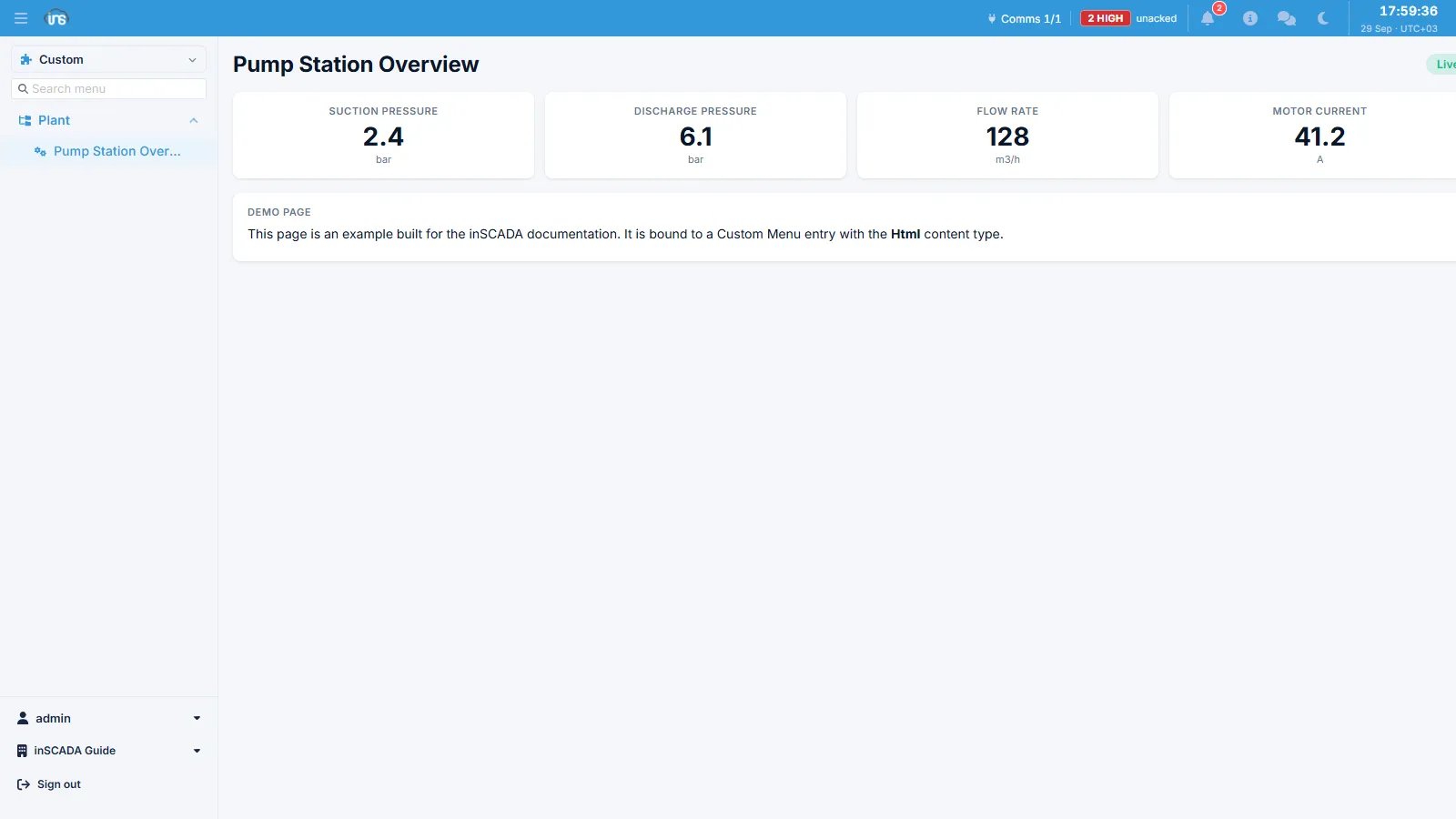
Section titled “Html Menus”In JDK 21 a Custom HTML page is a separate record. The menu does not hold the content itself; it only references an existing HTML record. The order is:
- Create the Custom HTML page → obtain its
customHtmlId - Create a Custom Menu of type
Htmland pass that ID
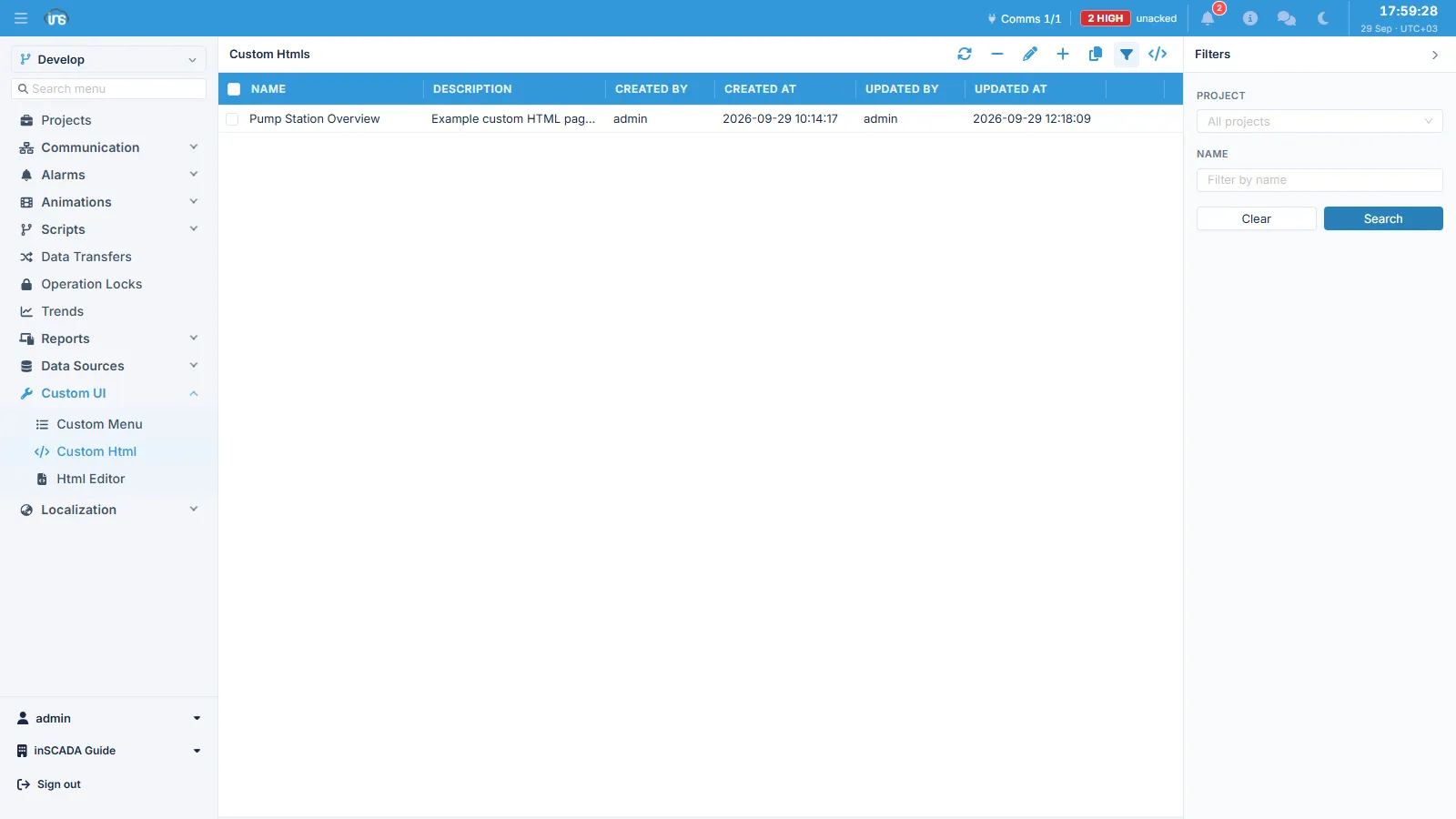
At runtime the menu opens with the linked page embedded in it:
Reading data from the page
Section titled “Reading data from the page”A Custom HTML page runs inside a sandboxed iframe. The only way to reach the inSCADA API is the InscadaApi proxy that the server injects into the page automatically:
var api = new InscadaApi();          // the page resolves its own project
(async function () {  var v = await api.getVariableValue('ActivePower_kW');  document.getElementById('power').textContent = v.value.toFixed(1);
// Several variables — a single round trip var batch = await api.getVariableValues(['Voltage_V', 'Current_A']); console.log(batch.Voltage_V.value);})();Menu Visibility
Section titled “Menu Visibility”Adding it directly to the administrator role is not possible either: Administrator and Space Admin are system roles and cannot be modified; attempting to update them returns an error.
Because privileges are additive, the solution is to create a second role that carries only the relevant custom menus:
- Create a role whose name reflects its purpose — for example
PumpStationAccess - Add the new menu to that role
- Assign the role to the relevant users — their existing roles are kept, the new one is added on top
For subsequent menus you only need to repeat step 2.
Following least privilege, add only custom menus to this role. System menus such as Home, Variables and Trends already come from the user’s administrator role; adding them again clutters the audit trail for no benefit.
Why can a user not see a menu?
Section titled “Why can a user not see a menu?”- List the user’s roles
- List the menus bound to each of those roles
- If the menu appears in none of them, the role-menu binding is missing
Cloning
Section titled “Cloning”An existing menu can be copied under a new name. Since name is immutable, this is the practical way to produce a similar menu with a different name.
Deletion
Section titled “Deletion”Deleting a Custom Menu also deletes the menu privilege behind it, and every role binding for that menu is cleaned up automatically. No dangling references are left on the roles.
Bulk deletion is level-specific: all the menus being deleted must sit at the same level (root / second / third). Use separate operations for menus at different levels.