
File Management
File management holds the files uploaded to the space: images used in animations, the script and style files of custom HTML screens, report templates, documents.
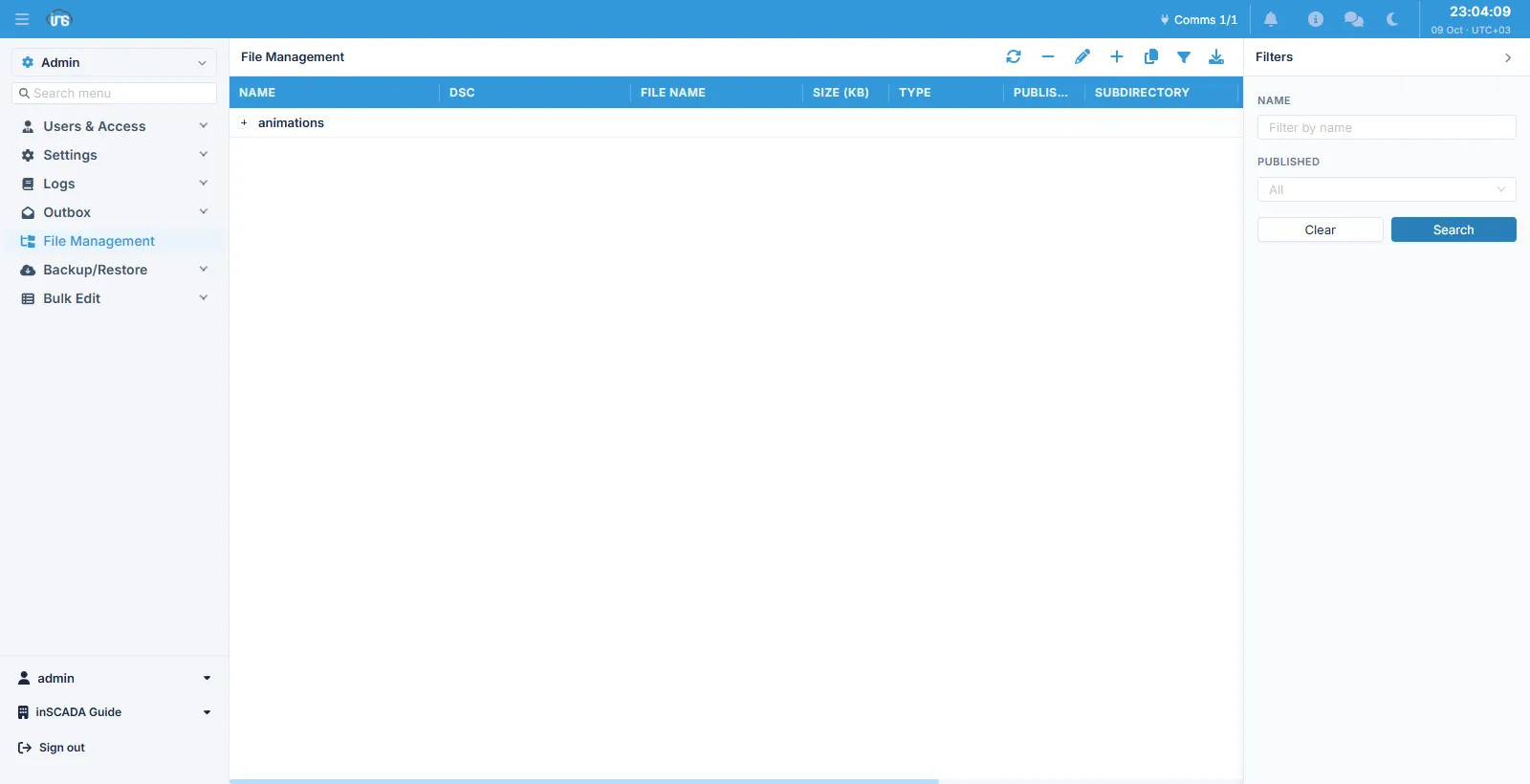
Files are listed as a tree under subdirectories.
Columns
Section titled “Columns”| Column | Description |
|---|---|
| Name | The record’s name, max 100 characters |
| Dsc | Description, max 255 characters |
| File Name | The file’s name on disk |
| Size (KB) | The file size |
| Type | The content type |
| Published | Whether the file can be fetched by path |
| Subdirectory | The subdirectory it sits in |
The toolbar holds refresh, delete, edit, add, clone, filter and download. The filter panel searches by name and by published state.
What Published means
Section titled “What Published means”A file marked Published can be fetched by its relative path. When it is not marked, that same path answers “file not found” — the file is still there, it is simply not served from that path.
This is what decides how a screen reaches a file: when a custom HTML screen or an animation calls an image or a script by path, that file has to be published.
A SHA-256 checksum is kept for every file, which is how a change of content is noticed.
Related
Section titled “Related”- Custom HTML — calling a file from a screen
- Backup — files in a backup