
Logo Settings
Logo settings change the logo shown in the interface, so an installation can carry the customer’s own brand.
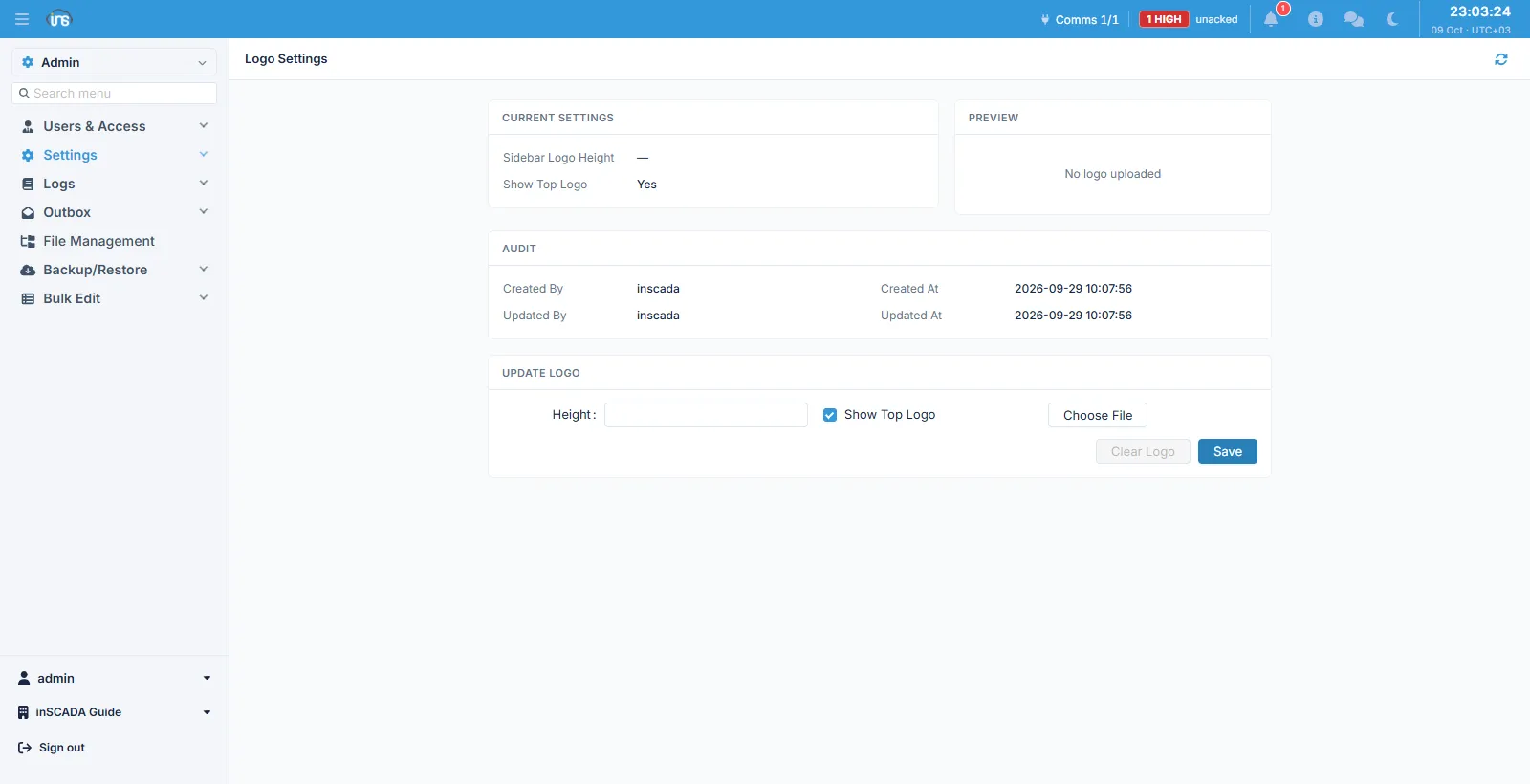
The screen is in three parts: Current Settings on the left, Preview on the right, and Update Logo below.
Fields
Section titled “Fields”| Field | Description |
|---|---|
| Height | The height of the logo in the side menu |
| Show Top Logo | Whether the logo appears in the top bar |
| Choose File | The logo file to upload |
Preview shows the uploaded logo, or “No logo uploaded” when there is none. Clear Logo removes an uploaded logo and is enabled only while one exists.
An Audit block below shows who changed the record and when.
Related
Section titled “Related”- Login Page Settings — the sign-in screen’s appearance