
Color
Color changes an object’s colour according to a value. Showing a running or stopped motor green or grey, turning a temperature red once it passes a threshold, colouring a valve by its position — all of it is built with this type.
It is available on any SVG object.
Three modes
Section titled “Three modes”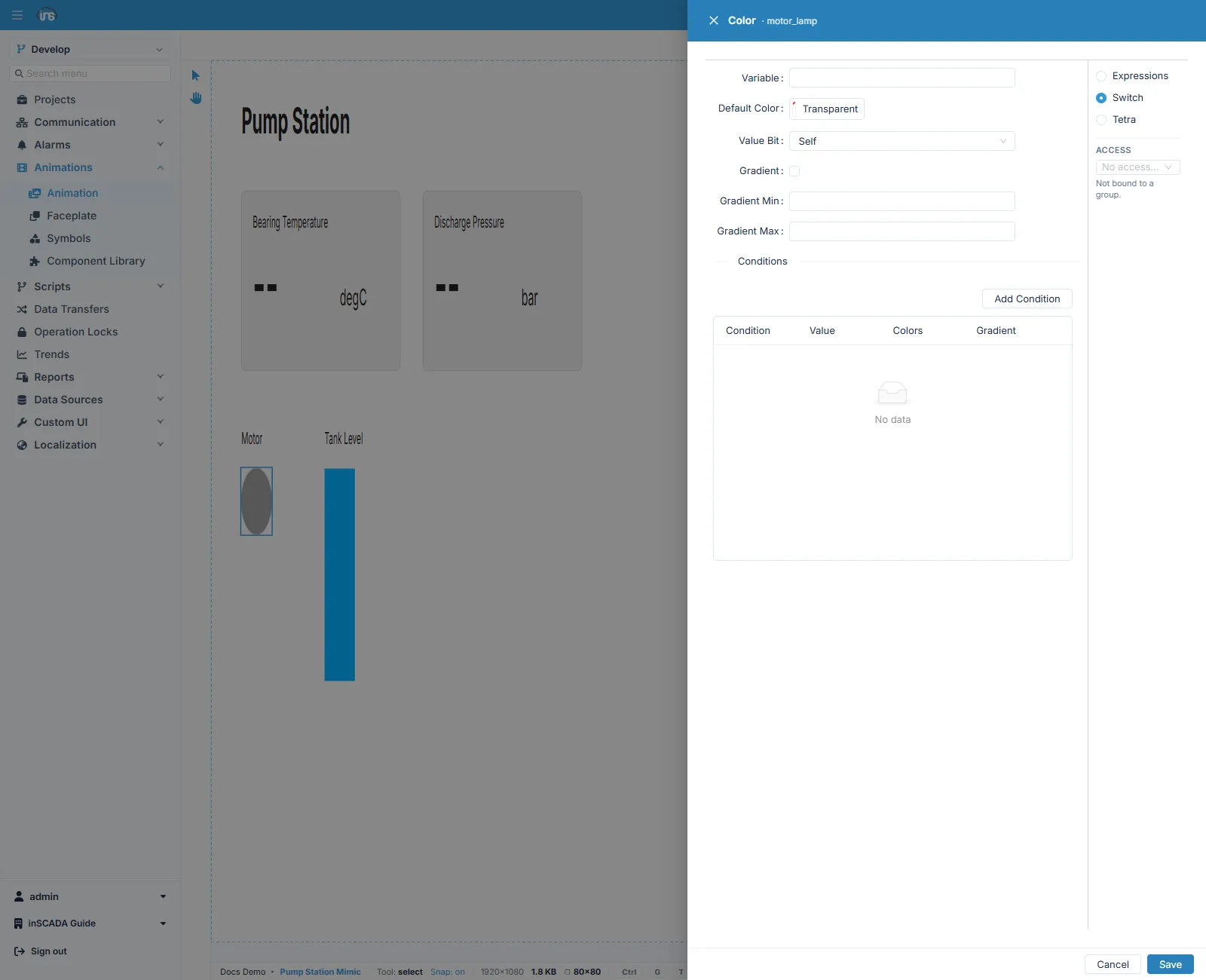
| Mode | When |
|---|---|
| Expressions | You compute the colour in code; the expression returns a colour |
| Switch | You fill in a table mapping values to colours — no code |
| Tetra | You give four colours to an alarm’s four states |
For most screens Switch is enough.
Switch mode
Section titled “Switch mode”| Field | Description |
|---|---|
| Variable | The variable to read |
| Default Color | The colour used when no condition matches. Left Transparent, the object keeps its own colour |
| Value Bit | Self takes the whole value; choosing a bit index reads only that bit out of the word |
| Gradient · Gradient Min · Gradient Max | The bounds of the range, when a gradient is used |
The condition table
Section titled “The condition table”Each row is a comparison, a value, and the colour to apply:
| Condition | Value | Colors |
|---|---|---|
= | 0 | grey |
= | 1 | green |
> | 80 | red |
Rows are evaluated in order and the first match wins. If none matches, Default Color is used.
Gradients
Section titled “Gradients”With Gradient ticked the colour moves continuously between two thresholds. For quantities that change steadily — temperature, fill level, load — it gives a smooth transition instead of a colour that jumps at a threshold. The ends of the range are set with Gradient Min and Gradient Max.
Tetra mode
Section titled “Tetra mode”Assigns four separate colours to an alarm’s four states. It is used on alarm indicators, and it saves writing a condition table on every screen when the colour for each state is meant to stay fixed across the organisation.
The other way to show alarm state on an object is the AlarmIndication type. The difference: Color changes the object’s own colour, while AlarmIndication draws an indicator of its own.
Which property it changes
Section titled “Which property it changes”By default the binding changes the object’s fill colour (fill). To drive the colour of a line or an outline you target the stroke colour (stroke) instead, chosen in the binding’s props.
Related
Section titled “Related”- Element Editor — the fields every binding form shares
- Get — writing the value as text
- Opacity and Blink — the other ways to draw attention