
Animation
An animation is an SVG file plus the behaviour bound to the objects inside it. This page covers building a screen from scratch.
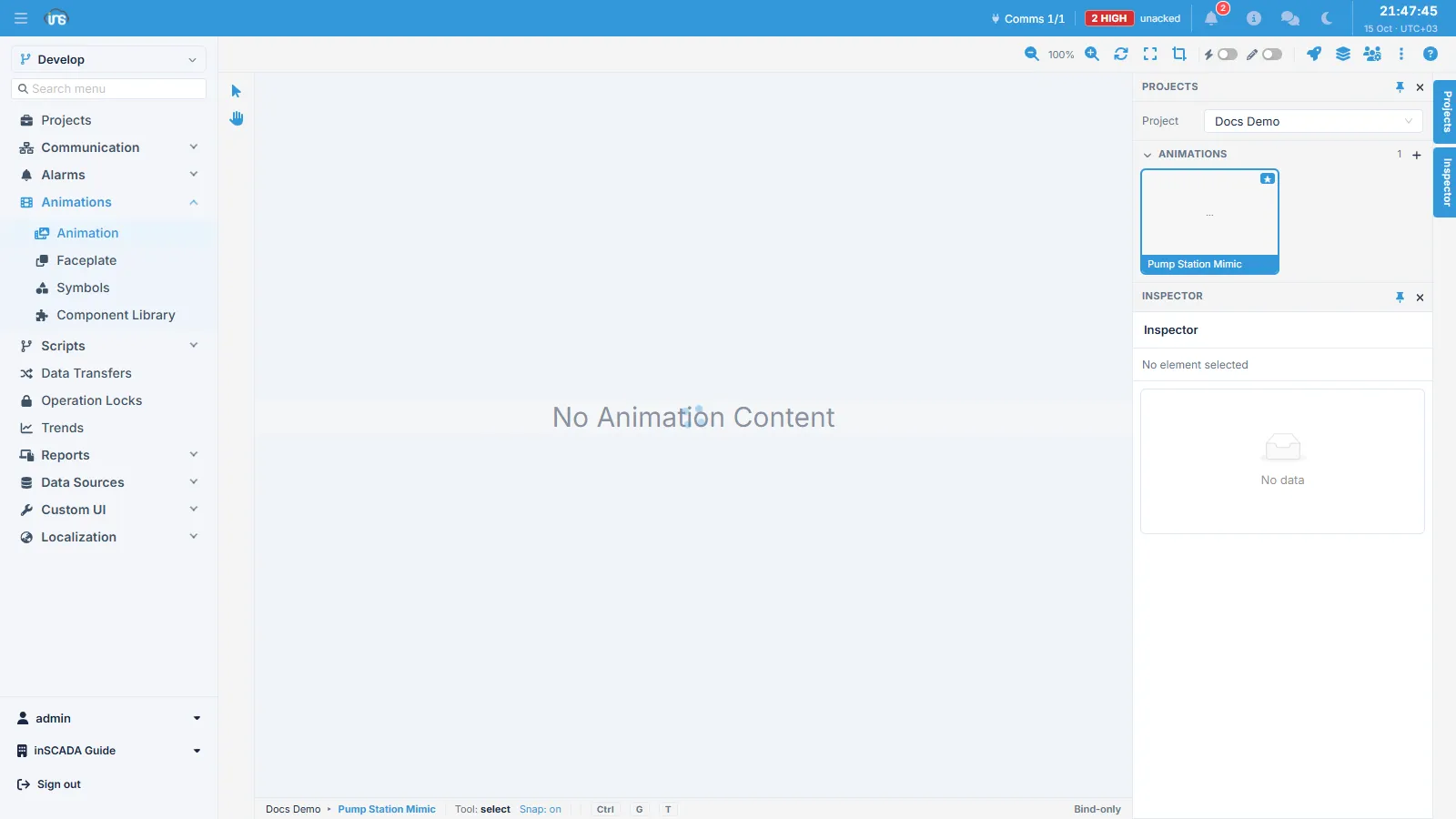
1. Creating the screen
Section titled “1. Creating the screen”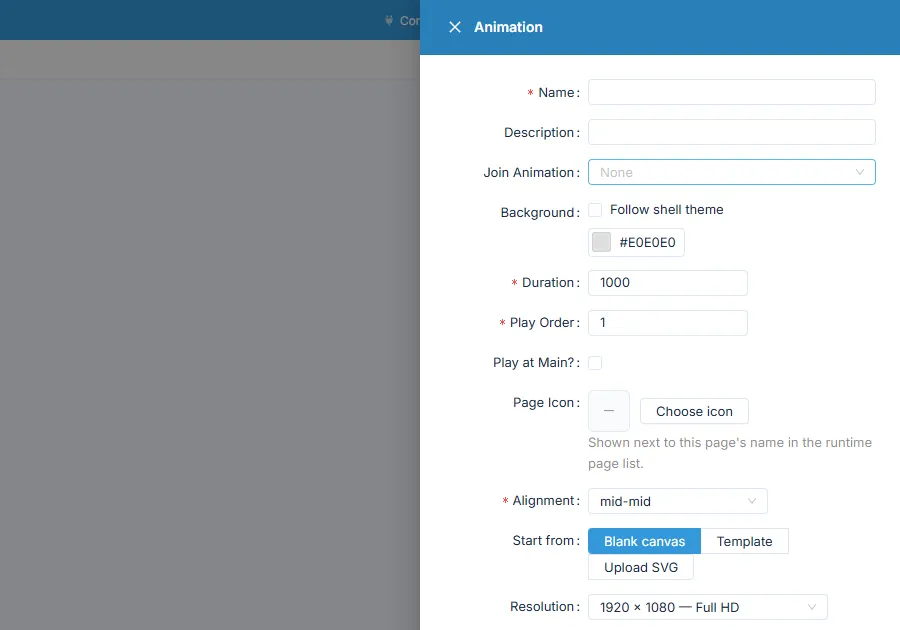
| Field | Required | Description |
|---|---|---|
| Name | Yes | Screen name — unique within the project |
| Description | No | Description |
| Join Animation | No | Another animation this screen joins |
| Background | No | Background colour; Follow shell theme hands it to the interface theme |
| Duration | Yes | Update period (ms) |
| Play Order | Yes | Ordering, when there is more than one screen |
| Play at Main? | No | Whether it opens as the main screen |
| Page Icon | No | Icon shown beside the name in the runtime page list |
| Alignment | Yes | How the screen is aligned within the window |
| Start from | Yes | A blank canvas, a template, or an uploaded SVG |
| Resolution | — | Canvas size; a typical SCADA screen is 1920×1080 |
Where to start from
Section titled “Where to start from”Start from offers three routes, and decides how you build the screen:
| Option | What it does |
|---|---|
| Blank canvas | Starts empty; you draw in the platform’s own designer |
| Template | Starts from a ready-made template |
| Upload SVG | Brings in an SVG prepared elsewhere |
The built-in designer has select and pan tools, snapping and keyboard shortcuts — simple screens need no external editor at all.
For complex schematics, scaled layouts, or a corporate drawing library, preparing the SVG in an external editor such as Inkscape and bringing it in with Upload SVG is the practical route. You do not have to manage SVG id values when you do: the platform walks the tree and makes every object selectable, though meaningful ids still make your life easier later.
2. Binding behaviour to objects
Section titled “2. Binding behaviour to objects”You click an object on the screen and open the Element Editor, where you choose what that object should do. Each binding is an animation element.
| Field | Description |
|---|---|
| DOM ID | The selected SVG object’s id — filled in automatically |
| Type | What the object does (table below) |
| Expression Type | How the value is arrived at |
| Expression | The value itself — a variable name, a formula, or a configuration |
| Props | Extra settings specific to the type |
| Status | Active / inactive |
Detail on the editor: Element Editor →
Animation types
Section titled “Animation types”The type decides what the object does.
| Type | What it does | Detail |
|---|---|---|
| Get | Writes the value as text | → |
| GetSymbol | Shows a symbol according to the value | — |
| Color | Changes the object’s colour | → |
| Bar | Fills a bar according to the value | → |
| Scale | Scales the object | → |
| Opacity | Changes opacity | → |
| Blink | Blinks on a condition | → |
| Rotate | Rotates the object | → |
| Move | Translates the object | → |
| Pipe | Flow animation along a pipe or line | → |
| Tooltip | Information balloon on hover | → |
| Image | Swaps the image according to the value | → |
| AlarmIndication | Shows alarm state | → |
| Animate | Animation driven from a script | → |
| Chart | Chart component | → |
| Datatable | Table component | → |
| Slider | Writes a value with a slider | → |
| Click | Click event | → |
| MouseDown / MouseUp / MouseOver | Mouse events | → |
| Iframe | Embeds an external page | → |
| Faceplate | Opens a faceplate | → |
| QRCodeGeneration | Generates a QR code | — |
Why the list changes with the object
Section titled “Why the list changes with the object”The type list is filtered by the kind of SVG object you selected, because not every type means anything on every object. You cannot write text into a circle, and a group cannot be filled like a bar.
Available on any object:
Color · Rotate · Move · Opacity · Scale · Blink · Bar · Pipe · Tooltip · AlarmIndication · Click · MouseUp · MouseDown · MouseOver
Added according to the object:
| SVG object | Also offered |
|---|---|
text, tspan | Get |
rect | Chart, Datatable, Iframe, Image, Slider, GetSymbol, Faceplate, QRCodeGeneration |
g (group) | Animate, Iframe, Faceplate — while Bar drops off the list |
image | Iframe |
When the type you want is not in the list, this is usually why: the wrong object is selected. Binding a chart needs a rect; displaying a value needs a text.
Expression types
Section titled “Expression types”The expression type decides where the value comes from. It is independent of the animation type: the same Color binding can take its value straight from a tag or from a formula.
| Type | Where the value comes from |
|---|---|
| TAG | A variable, directly |
| EXPRESSION | An expression you write |
| NUMERIC | A fixed number |
| TEXT | Fixed text |
| SWITCH | A lookup table keyed on the value |
| SET | Writing to a variable (with interaction types) |
| TETRA | A four-state colour mapping |
| ANIMATION | Another animation |
| FACEPLATE | A faceplate |
| SUBVIEW | A sub-view |
| CUSTOM HTML | A Custom HTML page |
| ALARM | Alarm state |
| ROLE | The user’s role — display driven by role |
| HARD LOCK | Hardware lock state |
Screen scripts
Section titled “Screen scripts”Two scripts can be attached to a screen, and both run on every evaluation round — not once as the screen opens and closes:
Each round: 1. Pre code 2. Element expressions (every binding) 3. Post code ↓ wait for Duration ↑ round againSo Pre is for preparing something the elements will read, and Post for tidying up once they have been computed.
Built-in variables
Section titled “Built-in variables”Bindings that are already there, in Pre/Post code and in element expressions:
| Variable | Type | Description |
|---|---|---|
__firstScan | Boolean | true on the first round, false afterwards |
__animName | String | The running animation’s name. When a join template is being evaluated, the joined animation’s name |
__parameters | Object | The screen’s placeholder parameters — delivered already parsed from JSON |
lang | String | The active language |
__parameters is an object; you read its fields directly (__parameters.motorId). Do not call JSON.parse on it — that throws.
__firstScan is how you separate work that should happen once, such as fetching history. Without it that query repeats every round, which on a one-second screen means once a second:
// Pre: fetch history on the first round onlyif (__firstScan) { var endMs = ins.now().getTime(); var logs = ins.getLoggedVariableValuesByPage( ['ActivePower_kW'], ins.getDate(endMs - 3600000), ins.getDate(endMs), 0, 30 );}Real-time updates
Section titled “Real-time updates”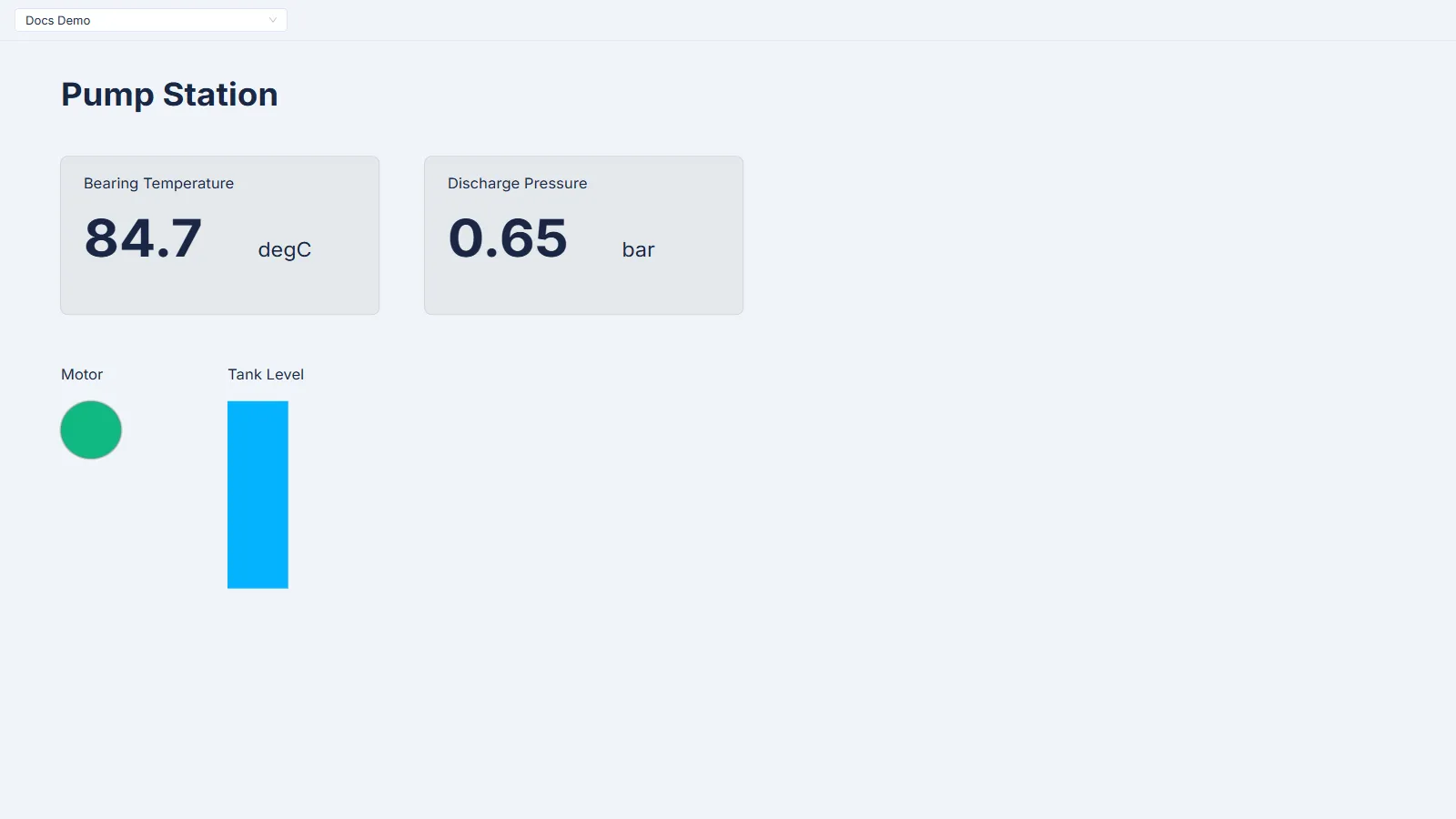
The screen above is an example built with the steps on this page: two Get bindings write the values as text, a Color binding drives the motor lamp, and a Bar binding fills the tank level.
While a screen is open the browser sends the server an evaluation request at the interval given in Duration; the server runs every element’s expression on the screen in one pass and returns the results, and the bindings update by themselves. Nothing has to be refreshed.
If a round does not come back in the time allowed — ten times Duration — the browser starts the round again, so a momentary break does not leave the screen frozen.
Parameterised screens
Section titled “Parameterised screens”One design can serve several pieces of equipment. A “motor detail” screen is prepared once and opened for each motor with a different set of variables.
What makes that work is the animation’s placeholder definitions: instead of hard-coding variable names, the screen takes them as parameters, which a script reads through __parameters. At the level of a screen fragment, Faceplate does the same job.
Access and preview
Section titled “Access and preview”The animation itself carries no list of roles. Access is governed in two separate places:
| Level | How |
|---|---|
| Access to the screen | The screen is opened from a custom menu; which roles see that menu is set by the role-menu grants |
| Access to an object on the screen | Each binding can be bound to an access group. The element is not shown to a user outside that group |
The element-level binding is made in the ACCESS section of the Element Editor form. By default a binding belongs to no group and is visible to everyone.
The designer’s preview carries a View as selector: it shows the screen as a role or an access group would see it, rather than as you see it (“Me”). It is the practical way to see which objects are hidden without saving.
Related
Section titled “Related”- Element Editor — the binding form and the type list
- Faceplate