
MCP Server
inSCADA MCP Server bridges AI assistants (Claude, VS Code Copilot, Cursor, etc.) directly to your inSCADA SCADA system. Via Model Context Protocol (MCP), 39 tools enable live value reading, alarm monitoring, script writing, historical data analysis, chart generation, and more.
Note: This MCP server is designed for inSCADA JDK11 edition.
What is MCP?
Section titled “What is MCP?”Model Context Protocol (MCP) is an open protocol that enables AI assistants to communicate with external systems in a secure, standardized way. With MCP:
- The AI assistant accesses the inSCADA API directly
- Users give commands in natural language; the AI calls the appropriate tools in the background
- Dangerous operations (writing values, running scripts) require user confirmation
- All communication stays on the local machine — no data is sent to third parties
Installation
Section titled “Installation”Two installation methods are available:
Method 1: Extension File (MCPB)
Section titled “Method 1: Extension File (MCPB)”The easiest installation method. Uses a pre-built extension file designed for Claude Desktop.
- Download
inscada-mcp-server.zipfrom inscada.com/download - Extract the ZIP and double-click the
.mcpbfile — Claude Desktop opens automatically - Fill in the form:
- inSCADA URL: Server address (e.g.
http://localhost:8081orhttps://server:8082) - Username: inSCADA login username
- Password: inSCADA login password
- inSCADA URL: Server address (e.g.
- Done! The extension appears in Claude Desktop with its icon and description.
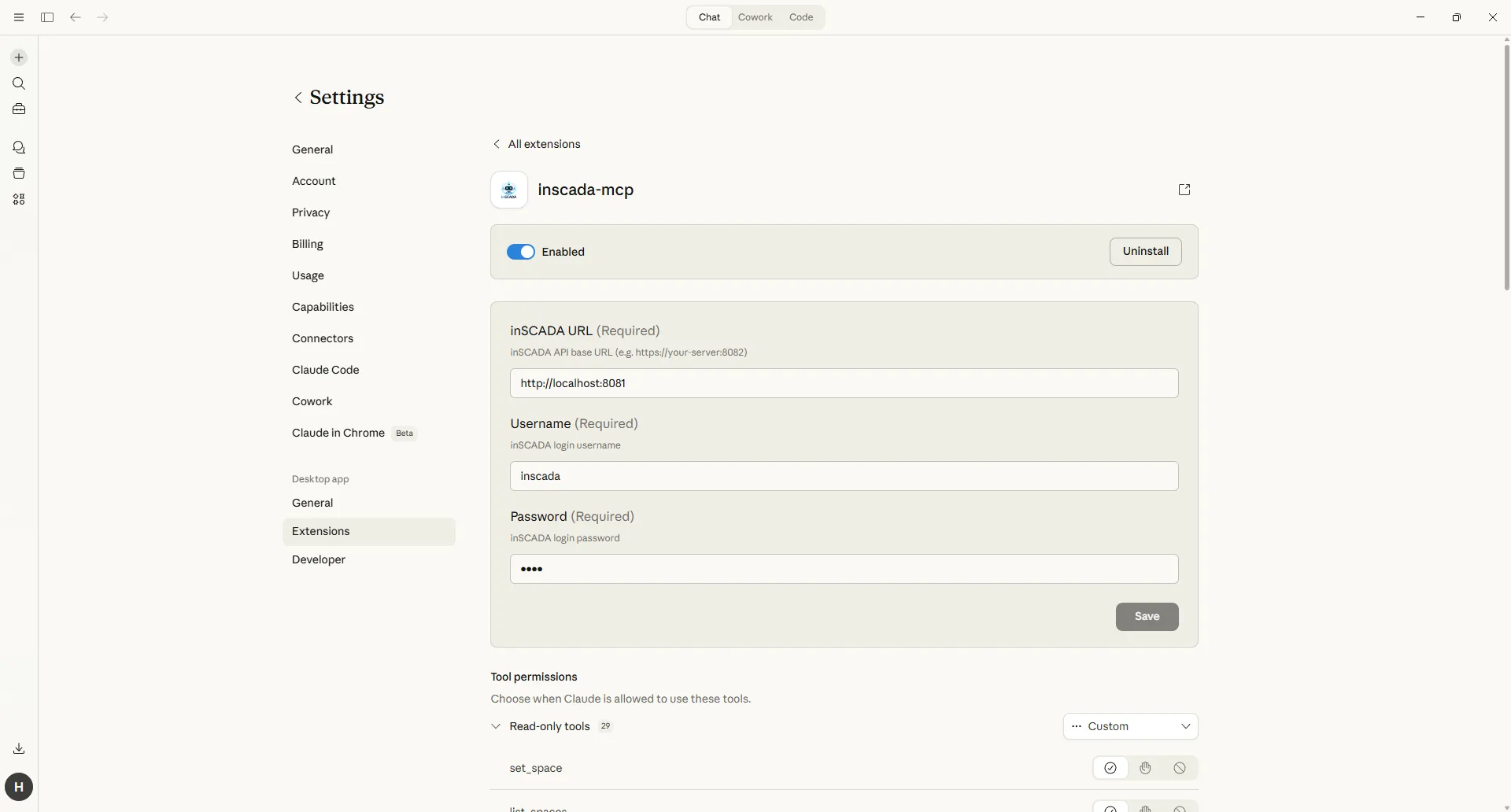
Advantages:
- One-click installation, no JSON file editing needed
- Icon, description, and settings panel visible in Claude Desktop
- Passwords entered in a masked GUI form
- Update by downloading and installing a new
.mcpbfile
Method 2: JSON Configuration
Section titled “Method 2: JSON Configuration”Suitable for developers and CI/CD environments. You manually edit the Claude Desktop config file.
Config file location:
- Windows:
%APPDATA%\Claude\claude_desktop_config.json - Mac:
~/Library/Application Support/Claude/claude_desktop_config.json - Linux:
~/.config/Claude/claude_desktop_config.json
Add the following JSON to the config file:
{ "mcpServers": { "inscada": { "command": "npx", "args": ["-y", "@inscada/mcp-server"], "env": { "INSCADA_API_URL": "http://localhost:8081", "INSCADA_USERNAME": "your_username", "INSCADA_PASSWORD": "your_password" } } }}Restart Claude Desktop.
Advantages:
npxautomatically downloads the latest version on each run- Compatible with other MCP clients (VS Code Copilot, Cursor, Windsurf)
- Multiple inSCADA servers can be configured
- Flexible configuration via environment variables
Installation Methods Comparison
Section titled “Installation Methods Comparison”| Extension (.mcpb) | JSON Config | |
|---|---|---|
| Setup | Double-click + GUI form | Edit JSON file manually |
| UI | Icon, description, settings panel | Tools only, no visual UI |
| Credentials | GUI form, passwords masked | Plain text in JSON |
| Updates | Download new .mcpb | Update JSON or npx fetches latest |
| Compatibility | Claude Desktop only | All MCP clients |
| Best for | End users, operators | Developers, CI/CD |
Requirements
Section titled “Requirements”- Node.js 18 or higher
- A running inSCADA server (JDK11 edition)
- An MCP-capable AI client (Claude Desktop, VS Code Copilot, Cursor, etc.)
MCP Server includes 39 tools grouped into 8 categories:
- Space & Data (10) — Space, project, variable, variable search, script, connection management
- Animation (2) — Animation listing and details
- SCADA Operations (10) — Live values, alarms, connection status, historical data
- Charts (5) — Line, bar, gauge, multi-series, forecast charts
- Custom Menu (6) — Menu CRUD operations (template-based creation supported)
- Generic API (3) — Discover and call 625+ endpoints
- Export (1) — Excel file generation
- Guide (2) — Script rules, animation element details, best practices
For usage scenarios, prompt examples, and token optimization: Usage Guide
Security
Section titled “Security”Dangerous Tools
Section titled “Dangerous Tools”The following tools affect real equipment and require user confirmation on every use:
inscada_set_value— Writes values to real equipment (PLC, inverter, etc.)inscada_run_script— Executes server-side scriptsupdate_script— Modifies script codeinscada_api(POST/PUT/DELETE) — Modifies data via generic API
These tools are marked with MCP safety annotations (destructiveHint: true). The AI client prompts for user confirmation before calling them.
Credentials
Section titled “Credentials”- Credentials are stored only on the local machine (config file or Claude Desktop settings)
- Session tokens are kept in memory and discarded on exit
- No data is sent to third parties
npm Package
Section titled “npm Package”MCP Server is published as open source on npm:
npm install -g @inscada/mcp-serverOr run directly with npx:
npx -y @inscada/mcp-serverPackage: @inscada/mcp-server GitHub: inscada-app/mcp-desktop-extension
Telemetry
Section titled “Telemetry”MCP Server collects anonymous usage statistics for product improvement:
- Which tools are called and how often
- Error rates
- Session duration
Data NOT collected:
- SCADA values, variable names, or project information
- Username, password, or personal information
- Messages sent to or responses from the AI assistant
Telemetry is fully anonymous and optional.
Troubleshooting
Section titled “Troubleshooting””Node.js not found” Error
Section titled “”Node.js not found” Error”Make sure Node.js 18+ is installed: node --version
Connection Error
Section titled “Connection Error”- Verify the inSCADA server is running
- Ensure the
INSCADA_API_URLaddress is correct - Check firewall or proxy settings
Tools Not Visible
Section titled “Tools Not Visible”- Restart Claude Desktop
- Check JSON syntax in the config file
- Run
npx -y @inscada/mcp-serverin terminal to view error messages
Antivirus Blocking
Section titled “Antivirus Blocking”Some antivirus software may block .mcpb files. In that case, download the ZIP format and extract the .mcpb file, or use the JSON configuration method.