
Platform Architecture
inSCADA is a SCADA platform designed to collect, process, visualize, and automate data from field devices. It runs as a single Spring Boot application — all components live in one process.
Data Hierarchy
Section titled “Data Hierarchy”All data in inSCADA is organized at two levels: Space and Project. Some components are shared across all projects in a space; others belong to a single project.
Space (Workspace)│├── [Space-level — shared across projects]│ ├── Custom Menu│ ├── Dashboard│ ├── Expression│ └── Symbol (SVG symbol library)│└── Project │ ├── [Communication] │ └── Connection │ └── Device │ └── Frame │ └── Variable │ ├── [Monitoring & Alarm] │ ├── Alarm Group │ │ ├── Analog Alarm │ │ ├── Digital Alarm │ │ └── Custom Alarm │ └── Trend │ └── Trend Tag │ ├── [Automation] │ ├── Script │ └── Data Transfer │ ├── [Visualization] │ ├── Animation (SVG screen) │ └── Faceplate (reusable SVG component) │ └── [Reporting] └── Report (classic + Jasper)A space is the top-level isolation unit. Each space has its own projects, users, and configuration. Different spaces are fully independent of one another.
Typical uses:
- Customer isolation — one space per customer
- Environment separation — dev, test, production
- Departmental split — energy, water, building automation
Project
Section titled “Project”A project represents a facility, site, or logical unit. A space can contain many projects. Every component of a project (connections, alarms, scripts, screens, etc.) runs within the project’s scope.
Example projects:
- “Ankara Factory” — a production plant
- “GES-01” — a solar power plant
- “Building-A HVAC” — the HVAC system of a building
Projects can carry optional latitude/longitude coordinates and be shown on the map view.
Connection
Section titled “Connection”A connection is a communication channel to a field device or system. Each connection uses one protocol.
Supported protocols:
| Group | Protocol | Client | Server / Slave |
|---|---|---|---|
| Industrial | Modbus TCP / UDP / RTU Over TCP | ✓ | ✓ (per transport) |
| S7 | ✓ | — | |
| EtherNet/IP | ✓ | — | |
| Fatek TCP / UDP | ✓ | — | |
| Power / Utility | DNP3 | ✓ | ✓ |
| IEC 60870-5-104 | ✓ | ✓ | |
| IEC 61850 | ✓ | ✓ | |
| Open Standard | OPC UA | ✓ | ✓ |
| OPC DA | ✓ | — | |
| OPC XML | ✓ | — | |
| MQTT | ✓ | — | |
| Internal | LOCAL (simulation / internal computation) | — | — |
Every connection can be started and stopped independently. Status values: Connected, Disconnected.
Device
Section titled “Device”A device represents a physical or logical unit over a connection. A Modbus TCP connection, for example, may address several slave devices.
A frame is a block of data read from a device. Each frame defines an address range and a read period.
| Parameter | Description |
|---|---|
| Start address | First address to read |
| Quantity | Number of registers / points to read |
| Period | Read interval (ms) |
Variable
Section titled “Variable”The variable is the core data unit on the platform. A temperature reading, a motor status, a meter value — each one is a variable.
Core fields:
| Field | Description |
|---|---|
| Name | Unique within the project |
| Type | Float, Integer, Boolean, String |
| Unit | Engineering unit (°C, kW, bar, V, A, …) |
| Scaling | Raw → engineering conversion (engZeroScale, engFullScale) |
| Logging | Historical logging mode |
| Expression | Optional computed-value formula |
Scaling
Section titled “Scaling”Raw value is linearly converted to engineering value:
Engineering = engZeroScale + (raw - rawZeroScale) × (engFullScale - engZeroScale) / (rawFullScale - rawZeroScale)Example: 4-20 mA sensor → 0-100 °C:
- Raw: 4 mA → 0 °C, 20 mA → 100 °C
- engZeroScale=0, engFullScale=100, rawZeroScale=4, rawFullScale=20
Logging Types
Section titled “Logging Types”| Type | Description |
|---|---|
| No Log | Not logged |
| When Changed | Log on value change |
| Periodically | Log at fixed interval (logPeriod seconds) |
| Threshold | Log when a threshold is crossed |
| Expression | Log decision driven by a user expression |
| Custom | Script-driven custom logic |
Value Expression
Section titled “Value Expression”A variable can carry a per-variable compute formula. On every read cycle the formula runs and its result becomes the variable value:
// Sine-wave simulationvar t = new Date().getTime() / 1000;return (Math.sin(t / 60) * 150 + 450).toFixed(2) * 1;Alarm System
Section titled “Alarm System”Alarm Group
Section titled “Alarm Group”Alarms are organized into groups. Every alarm group belongs to a project and can be enabled/disabled together.
Project└── Alarm Group (e.g. "Temperature Alarms") ├── Analog Alarm: Temperature_C > 60 °C (High) ├── Analog Alarm: Temperature_C > 80 °C (Critical) └── Analog Alarm: Temperature_C < 10 °C (Low)Alarm Types
Section titled “Alarm Types”| Type | Description | Parameters |
|---|---|---|
| Analog | Numeric threshold | setPoint, highHigh, high, low, lowLow |
| Digital | Boolean state | ON → alarm, OFF → normal |
| Custom | Script-based condition | JavaScript expression |
Alarm Status (FiredAlarm)
Section titled “Alarm Status (FiredAlarm)”Each triggered alarm is stored as a FiredAlarm record. The actual status is two-valued:
ON (fired) → OFF (cleared)Acknowledge and comment are not part of the status — acknowledgeTime, acknowledgedBy, commentTime, comment are separate fields that capture user interaction but do not change the alarm state.
Every alarm event is stored historically: fire time, clear time, who acknowledged, duration.
Script Engine
Section titled “Script Engine”Scripts are the platform’s automation engine. They run server-side on GraalJS (Nashorn compatibility mode) and access all platform data through the ins.* API.
Typical Script Use Cases
Section titled “Typical Script Use Cases”| Area | Description | Example |
|---|---|---|
| Scheduled task | Periodic or timed execution | Energy calc every 10 s |
| Variable formula | Value derivation | Derive a 3rd variable from two others |
| Alarm condition | Custom alarm logic | Condition across multiple variables |
| Data integration | REST calls | Pulling weather data from an API |
| Reporting | Automatic reports | Emailing a daily PDF report |
| Notification | Event-driven messaging | Sending an SMS on alarm fire |
Schedule Types
Section titled “Schedule Types”| Type | Behavior |
|---|---|
| Periodic | Runs every X milliseconds |
| Daily | Runs once a day at a fixed time |
| Once | Runs once and stops |
| None | Manual / API trigger only |
Details: Script Engine →
Visualization Components
Section titled “Visualization Components”Animation (SVG screen) — Project-level
Section titled “Animation (SVG screen) — Project-level”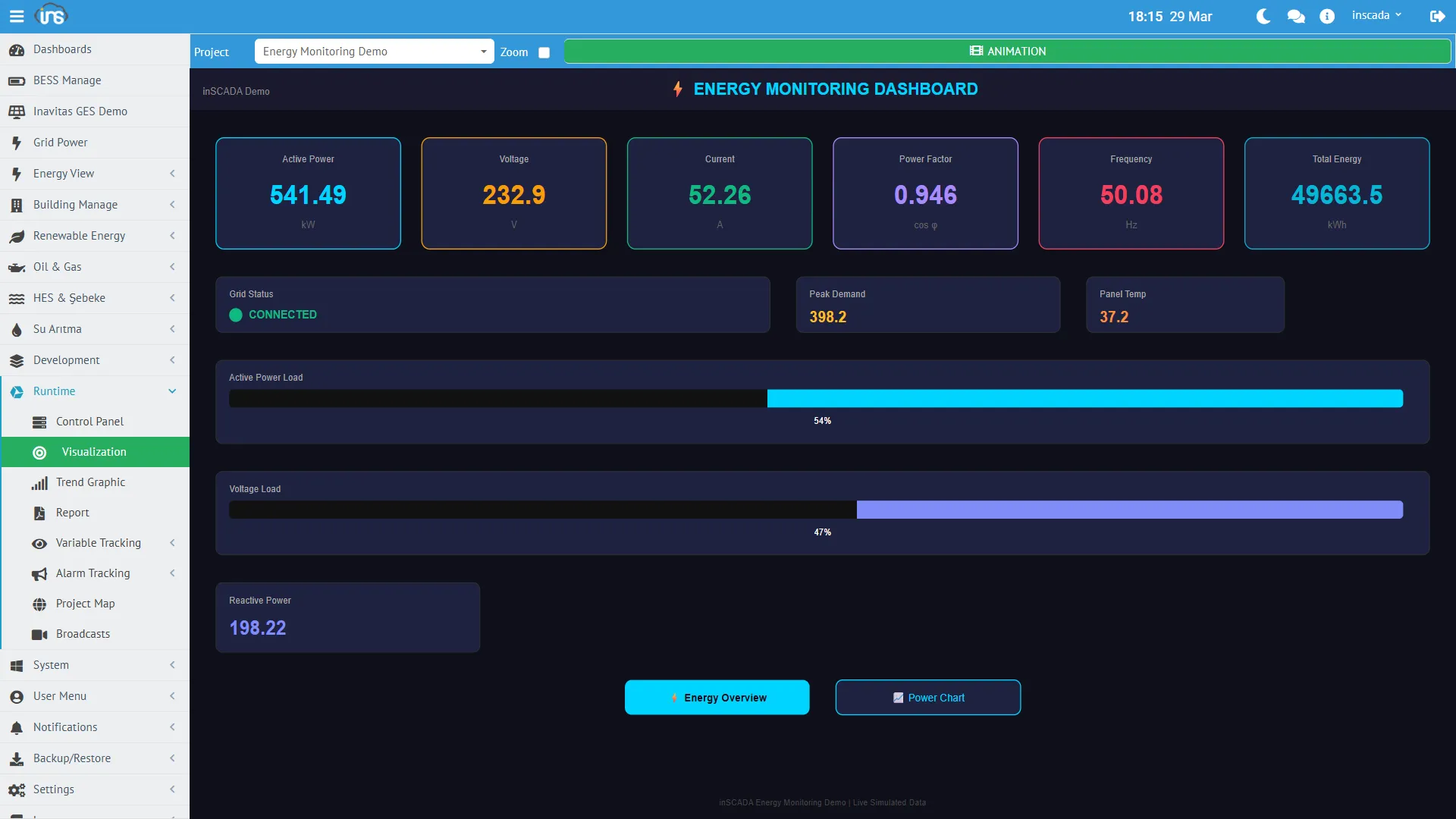
SVG-based interactive SCADA screens. Variable values are rendered live: color changes, movement, numeric readouts, on/off controls.
Faceplate — Project-level
Section titled “Faceplate — Project-level”Reusable SVG components. A motor, valve, or pump that appears many times can be defined once as a faceplate and embedded in multiple animations.
Symbol (SVG symbol library) — Space-level
Section titled “Symbol (SVG symbol library) — Space-level”An SVG symbol library shared across the space. Animations and faceplates in any project can reference its symbols.
Dashboard — Space-level
Section titled “Dashboard — Space-level”Used to combine data from several projects into a single board. Defined at the space level so it can span projects.
Trend Chart — Project-level
Section titled “Trend Chart — Project-level”Time-series charts of one or more variables (Trend Tag). Used for historical inspection and comparison.
Custom Menu — Space-level
Section titled “Custom Menu — Space-level”Builds a per-role navigation menu. Different menus can be assigned to different roles: operator sees only monitoring screens, manager sees reports, engineer sees configuration.
Report — Project-level
Section titled “Report — Project-level”Produces PDF and Excel output. Two report flavors:
- Classic Report — inSCADA’s built-in table/template format
- Jasper Report — JasperReports files (.jrxml / .jasper) for rich layouts
Both can be scheduled, emailed, or written to disk.
Expression (shared formula) — Space-level
Section titled “Expression (shared formula) — Space-level”Shared compute formulas used by many variables or alarms. Centralizes repeated formulas so they can be maintained in one place.
Project Map
Section titled “Project Map”
A GIS view with project locations. Each project marker shows live values, alarm status, and connection health in a popup.
Database Layers
Section titled “Database Layers”inSCADA uses three data tiers, each tuned for a different data shape:
PostgreSQL — Configuration Database
Section titled “PostgreSQL — Configuration Database”Project definitions, variable settings, users, roles, alarm definitions, script code — all platform configuration data lives here. This data changes rarely, is relational, and prioritizes consistency.
Schema migrations are managed by Flyway; the default schema name is inscada.
InfluxDB — Time-Series Database
Section titled “InfluxDB — Time-Series Database”Variable history, alarm history, event logs, login attempts — everything with a timestamp lives here. This data is write-heavy, rarely updated, and queried by time range.
Each measurement (variable value, alarm, event log) can have its own retention policy; retention durations are configured at the InfluxDB layer — inSCADA does not hard-code a default.
Redis — Live-Value Cache
Section titled “Redis — Live-Value Cache”The latest value of every variable is held in Redis. ins.getVariableValue() and the REST API read from the cache — they do not touch InfluxDB.
Benefits:
- Sub-millisecond live-value reads
- Thousands of variables can be read concurrently
- Web UI and scripts see the same current value
Redis also backs script global objects, session tokens, and rate-limit counters.
Data Flow
Section titled “Data Flow”From field device to web screen:
┌─────────┐ ┌──────────┐ ┌─────────┐ ┌────────┐ ┌────────┐│ Field │───▶│Connection│───▶│ Frame │───▶│ Raw │───▶│ Scale ││ Device │ │(Protocol)│ │ (Read) │ │ Value │ │ │└─────────┘ └──────────┘ └─────────┘ └────────┘ └───┬────┘ │ ┌───────────────────────────────────────────┘ │ ▼ ┌──────────┐ ┌──────────┐ ┌──────────┐ │ Redis │───▶│ InfluxDB │ │ Alarm │ │ (Cache) │ │(History) │ │ Checks │ └────┬─────┘ └──────────┘ └──────────┘ │ ┌────────┼────────┐ ▼ ▼ ▼ ┌────────┐┌────────┐┌────────┐ │ Web ││ Script ││ REST │ │ UI ││ Engine ││ API │ └────────┘└────────┘└────────┘- Field device — PLC, RTU, sensor, meter, etc.
- Connection — attaches to the device using the configured protocol
- Frame read — the address block is polled at the frame period
- Raw value — the data returned by the device
- Scaling — raw → engineering conversion (if configured)
- Cache (Redis) — the current value is written to Redis
- Logging (InfluxDB) — based on the logging type, a history point is written
- Alarm checks — alarm definitions are evaluated
- Consumption — Web UI (WebSocket/SSE), Script Engine, and REST API all read from the same cache
Write Flow (command dispatch)
Section titled “Write Flow (command dispatch)”UI / Script / API → cache update → Connection → protocol write → Field deviceWhen ins.setVariableValue() (or the UI) writes a value, the command is forwarded over the connection to the field device.
Multi-Space (Multi-Tenant)
Section titled “Multi-Space (Multi-Tenant)”inSCADA Instance├── Space: "energy"│ ├── Project: "GES-01"│ ├── Project: "GES-02"│ └── Project: "RES-01"│├── Space: "buildings"│ ├── Project: "HQ"│ └── Project: "Warehouse"│└── Space: "water" ├── Project: "Treatment Plant" └── Project: "Pump Stations"Each space:
- Has its own set of projects
- Has its own user permissions
- Is data-isolated from other spaces
Users can have access to multiple spaces and switch between them mid-session. REST calls pass the target space via the X-Space header.
Cluster Mode (optional)
Section titled “Cluster Mode (optional)”Activating the cluster Spring profile runs inSCADA in multi-node (active-follower) mode. Entity replication, InfluxDB sync, and file-system replication ride RabbitMQ; leader election is done over JGroups. A single-node setup does not require the cluster profile.
Access and Ports
Section titled “Access and Ports”Default configuration:
| Port | Use |
|---|---|
| 8082 | HTTPS — Web UI and REST API (main endpoint) |
| 8083 | HTTPS — Sandbox (isolated origin for custom-HTML widget iframes) |
The application serves over HTTPS only by default; the TLS bundle is configured via server.ssl.bundle. No plain-HTTP port is opened by default.
The follower profile uses 9082/9083 to separate node01 from node02 locally.
The web UI works in any modern browser, including tablets and phones (responsive). No desktop client install required.
Configuration details: Configuration →