
Slider
Slider puts a slider on the screen; the operator writes a value to a variable by dragging the handle. It is used for setting a setpoint, giving a speed reference, or dialling in a ratio by hand.
It is offered on rect alone: you set aside the area the slider occupies by drawing a rectangle.
Configuration: no form, an expression
Section titled “Configuration: no form, an expression”Most types give you a Tag form with fields to fill in. Slider does not — its only mode is Expressions, and the expression itself builds the slider.
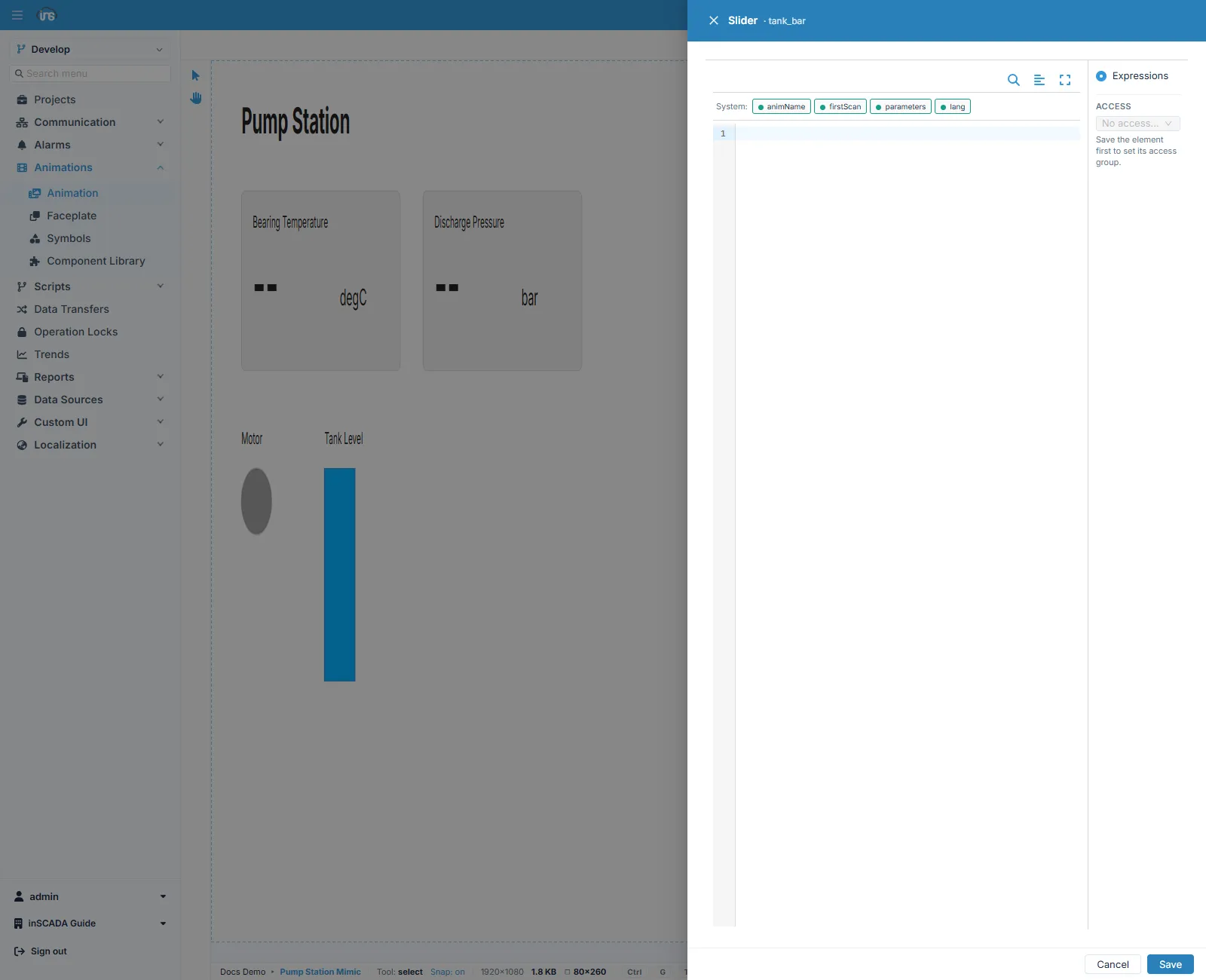
The expression runs in an isolated frame of its own, with these already in place:
| What | Description |
|---|---|
_container | The empty div the slider is drawn into |
inscadaApi | The client API for reading and writing values and calling the platform |
| noUiSlider · wNumb | The slider library and its number-formatting helper, already loaded on the page |
So the expression does two things: it builds the slider inside _container, and it writes the value to the variable through inscadaApi as the handle moves. The bounds, the step, the orientation and when the value is written are all decided in that code.
Write permission, locks and signatures
Section titled “Write permission, locks and signatures”Writing from a slider is an ordinary variable write and is subject to the same controls:
- Refused if the user does not hold the permission to write values.
- Refused if the variable carries an Operation Lock.
- Where the installation requires a signature, a signing box appears before the write and the operation is recorded in the audit trail along with who performed it.
An embedded slider versus a pop-up one
Section titled “An embedded slider versus a pop-up one”There are two separate things here and they are easy to confuse:
The Slider type | Click → Set → Slider style | |
|---|---|---|
| How it is configured | By writing an expression | From a form — variable, bounds, step |
| Where it sits | On the screen, always visible | In a window that opens when clicked |
| When it suits | A setpoint the operator adjusts often | A value changed rarely, that should not be touched by accident |
If you want a slider without writing code, the second is almost certainly what you are after: a Click binding with the Set action and the Slider presentation style. Detail: Click and mouse events.
It is also the one to choose to protect a value against accidental change: a handle sitting on the screen is easy to nudge.
How it works at run time
Section titled “How it works at run time”Slider takes no part in the screen’s periodic evaluation loop. Like Chart and Datatable it renders in an isolated frame of its own and fetches its own data. Detail: Element Editor.
Related
Section titled “Related”- Click and mouse events — the form-configured slider, and the other ways to write a value
- Element Editor — the fields every binding form shares
- Bar and Scale — the display-only counterpart that writes nothing