
AI Assistant
inSCADA offers two solutions that connect AI assistants directly to your SCADA system. Both solutions use the same 39 tools to read live values, monitor alarms, write scripts, analyze historical data, generate charts, and more.
Note: Both solutions require inSCADA JDK11 edition.
Choose Your Solution
Section titled “Choose Your Solution”| MCP Server | AI Assistant (Desktop) | |
|---|---|---|
| Platform | Claude Desktop, VS Code Copilot, Cursor | Standalone Windows application |
| Setup | .mcpb or JSON config | Installer (.exe) |
| AI Provider | Claude (subscription) | Claude, Ollama, Gemini, Groq, etc. |
| Data privacy | Data passes through Claude system | 100% local with Ollama |
| Cost | Claude Pro/Max subscription | API token cost (free with Ollama) |
| Interface | Within Claude Desktop | Built-in chat UI (TR/EN) |
| Details | MCP Server | Sections below |
Capabilities
Section titled “Capabilities”- Natural language querying — Query your SCADA data by speaking in Turkish or English
- Live data & charts — Create line, bar, gauge, and forecast charts
- Alarm analysis — Query active alarms and analyze alarm history
- Script development — Write, test, and deploy Nashorn ES5 compatible scripts
- Excel export — Export query results as .xlsx files
- API discovery — Discover and call 625+ inSCADA endpoints in natural language
39 Tools — 8 Categories
Section titled “39 Tools — 8 Categories”| Category | Count | Description |
|---|---|---|
| Space & Data | 10 | Space, project, variable, variable search, script, connection management |
| Animation | 2 | Animation listing and details |
| SCADA Operations | 10 | Live values, alarms, connection status, historical data |
| Charts | 5 | Line, bar, gauge, multi-series, forecast charts |
| Custom Menu | 6 | Menu CRUD operations (template-based creation supported) |
| Generic API | 3 | Discover and call 625+ endpoints |
| Export | 1 | Excel file generation |
| Guide | 2 | Script rules, animation element details, best practices |
AI Assistant — Desktop Application
Section titled “AI Assistant — Desktop Application”Standalone Windows application. Choose your own AI provider, run fully local with Ollama — your data never leaves your computer.
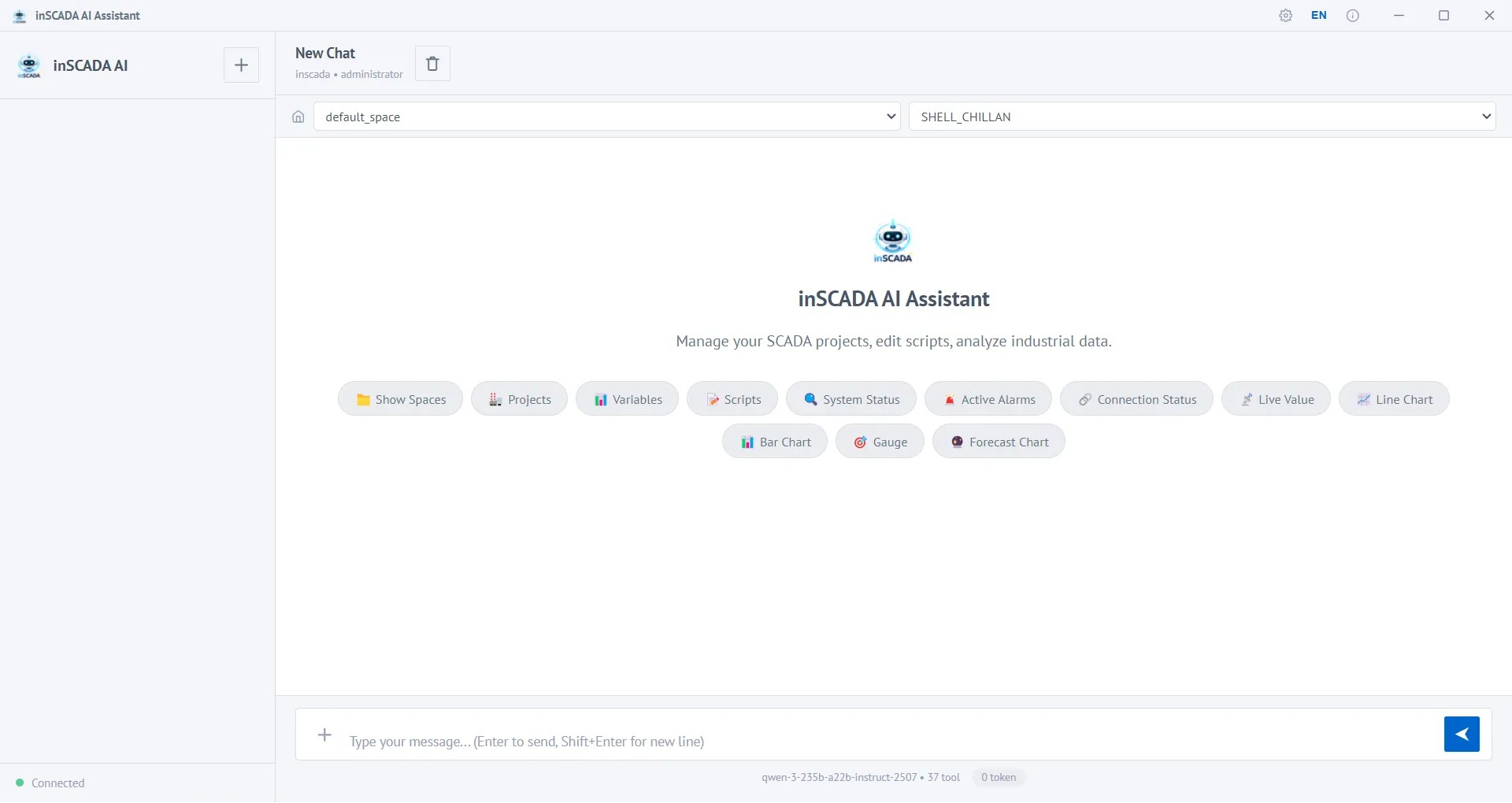
Supported AI Providers
Section titled “Supported AI Providers”| Provider | Description |
|---|---|
| Claude (Anthropic) | Recommended. Ideal for complex SCADA analysis and long script generation |
| Ollama (Local) | Open-source models running on your computer. No internet required, data stays local |
| OpenAI Compatible | Google Gemini, Groq, Cerebras, OpenRouter, and other OpenAI-compatible API providers |
Installation
Section titled “Installation”- Download the inSCADA AI Assistant installer from inscada.com/download
- Run the installer and complete the setup
- Launch the application
Requirements: Windows 10/11, a running inSCADA server (JDK11 edition)
Initial Configuration
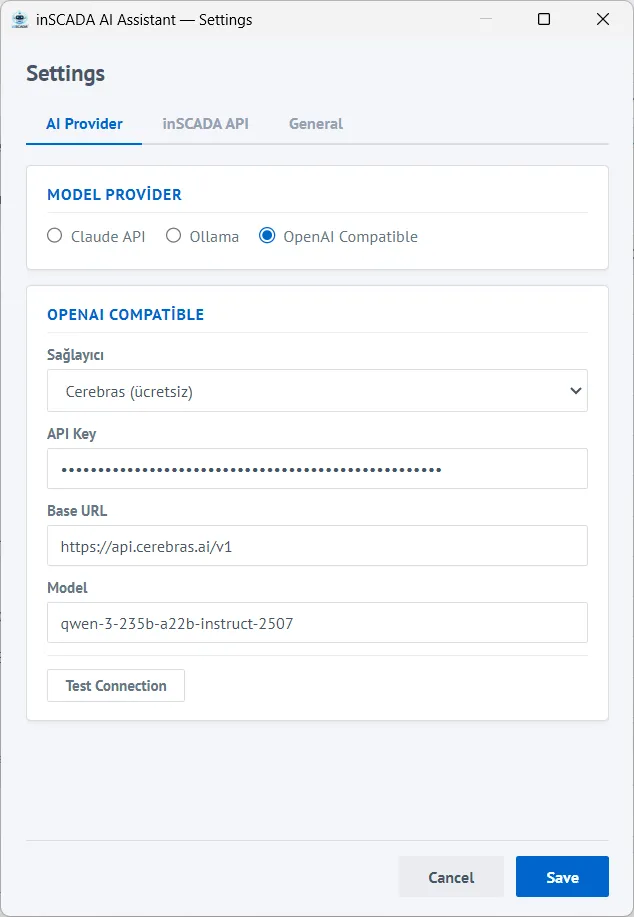
Section titled “Initial Configuration”Configure the application from the settings page on first launch:
1. AI Provider Selection:
- Claude: Enter your Anthropic API key
- Ollama: Enter Ollama server address (default:
http://localhost:11434) - OpenAI Compatible: Select provider, enter API URL and key
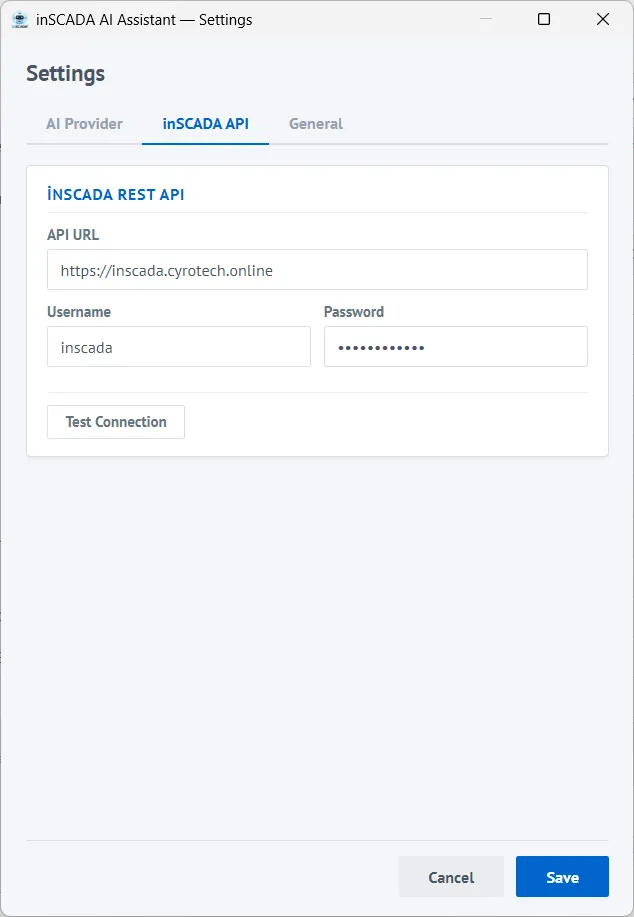
2. inSCADA Connection:
- inSCADA URL: Server address (e.g.
http://localhost:8081) - Username: inSCADA login username
- Password: inSCADA login password
- Test Connection: Use the test button to verify connection settings
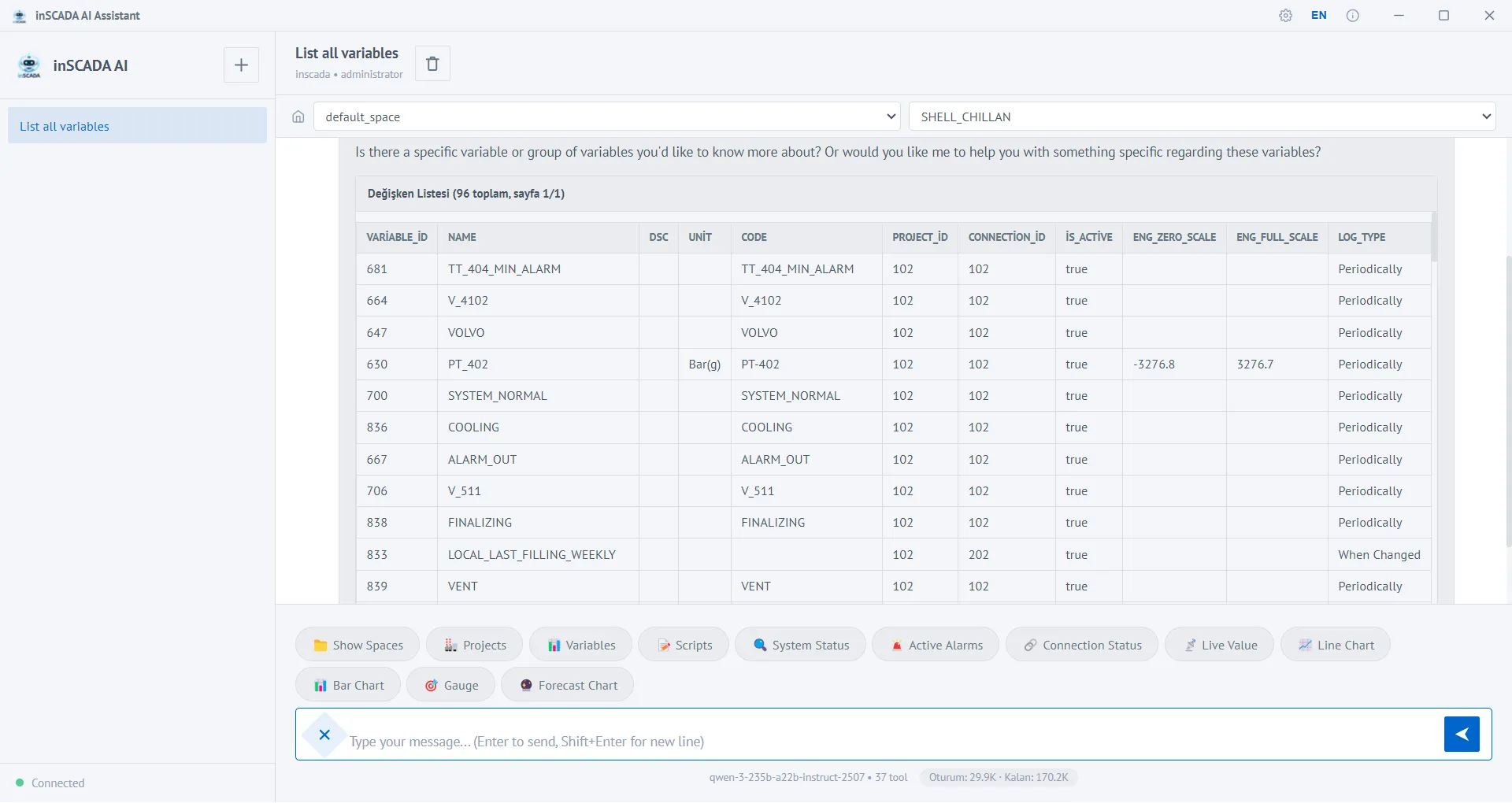
Features
Section titled “Features”- Chat interface — Full Turkish and English support, conversation history
- Excel export — Download query results as .xlsx files
- Live gauge — Auto-refreshing gauge panels every 2 seconds
- Forecast charts — AI predictions visualized on the same chart with historical data
- Script development — Write, test, and deploy scripts — all from a single chat
- Confirmation mechanism — Approval dialog for dangerous operations
Security
Section titled “Security”Dangerous Tools
Section titled “Dangerous Tools”The following tools affect real equipment and require user confirmation on every use:
inscada_set_value— Writes values to real equipment (PLC, inverter, etc.)inscada_run_script— Executes server-side scriptsupdate_script— Modifies script codeinscada_api(POST/PUT/DELETE) — Modifies data via generic API
In MCP Server: These tools are marked with MCP safety annotations (destructiveHint: true). The AI client prompts for user confirmation before calling them.
In AI Assistant: Blocked server-side and queued in pendingActions. The user approves or cancels via the confirmation dialog in the UI.
Data Privacy
Section titled “Data Privacy”- Credentials are stored only on the local machine
- AI Assistant binds to
127.0.0.1only — no network access - When using Ollama, no data leaves your computer
- In MCP Server, session tokens are kept in memory and discarded on exit
Usage Examples
Section titled “Usage Examples”A few example prompts:
Live value:
claude space, Energy Monitoring Demo, ActivePower_kW value?Chart:
claude space, Energy Monitoring Demo, ActivePower_kW last 24 hours chartScript writing (guide required):
inscada guide read. claude space, Energy Monitoring Demo,write a script that sends notification when temperature exceeds 60°C every 10 secondsExcel export:
claude space, Energy Monitoring Demo, export ActivePower_kW 24 hour data to ExcelFor detailed scenarios, prompt templates, and token optimization: Usage Guide