
Users & Roles
inSCADA provides user authorization with role-based access control (RBAC). Users are linked to roles, and roles are linked to permissions and menus.
User Management
Section titled “User Management”Menu: User Menu → Users
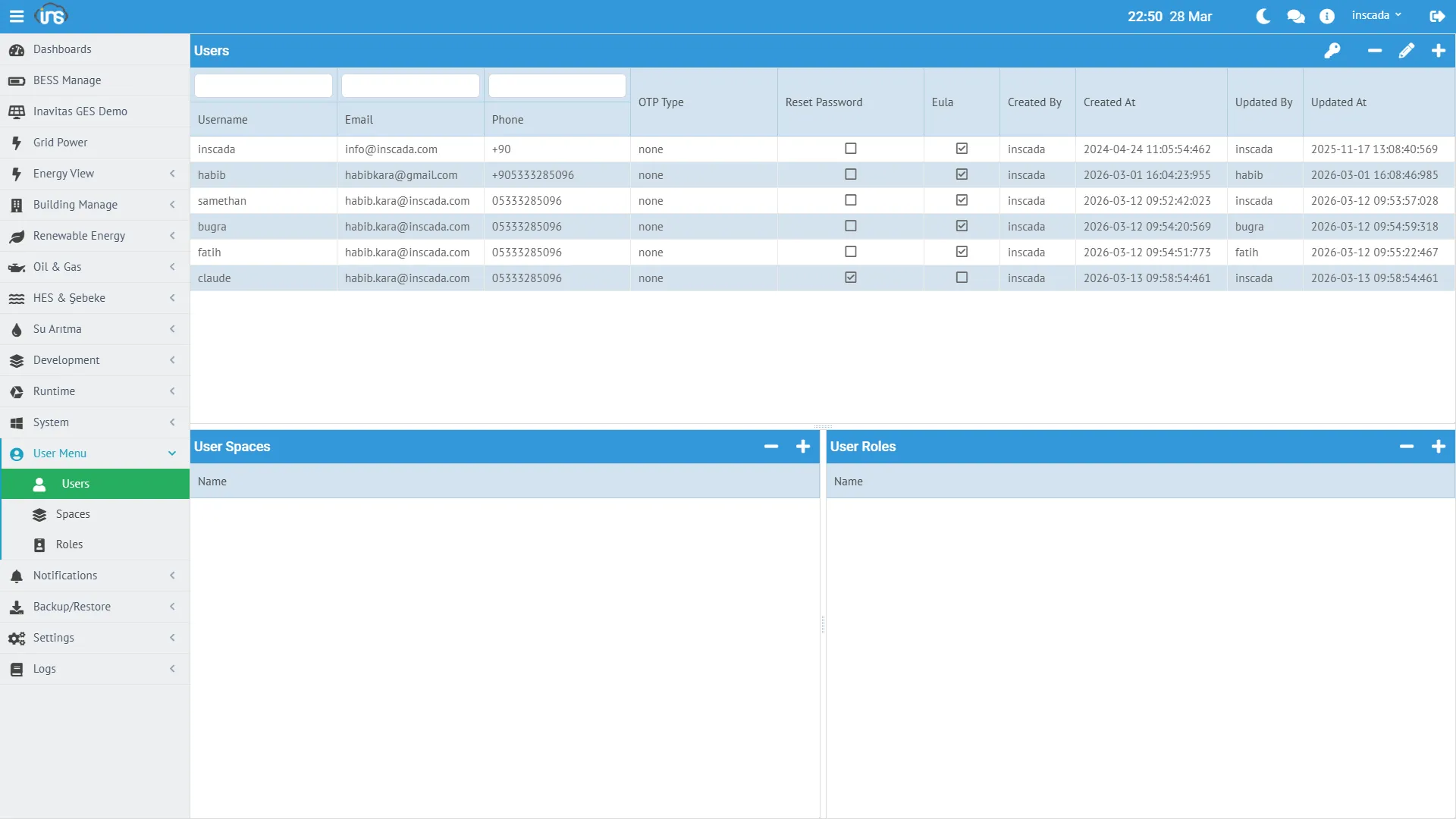
Creating a User
Section titled “Creating a User”| Field | Required | Description |
|---|---|---|
| Username | Yes | Login username (cannot be changed) |
| Password | Yes | Password (stored encrypted) |
| No | Email address (for notifications) | |
| Phone | No | Phone number (for SMS notifications) |
| Roles | Yes | Roles to assign |
| Spaces | Yes | Spaces the user can access |
Two-Factor Authentication (OTP)
Section titled “Two-Factor Authentication (OTP)”| Type | Description |
|---|---|
| NONE | OTP disabled |
| SMS | Verification code via SMS during login |
| Verification code via email during login |
Password Policies
Section titled “Password Policies”| Setting | Description |
|---|---|
| Require Password Reset | Force password change on next login |
| EULA Accepted | End-user license agreement acceptance |
Role Management
Section titled “Role Management”Menu: User Menu → Roles
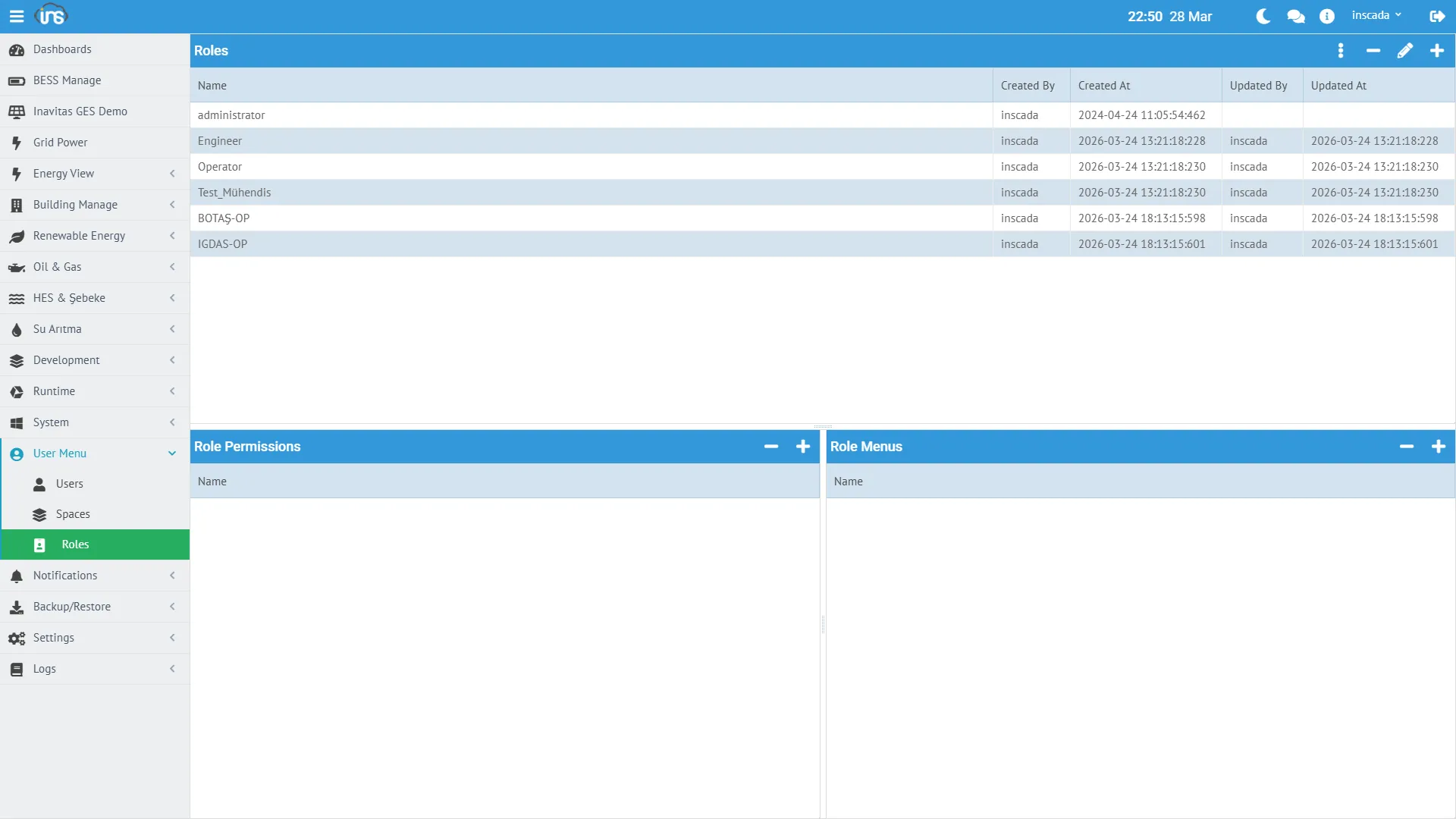
A role is a combination of permissions and menu groups. Multiple roles can be assigned to a user — permissions from all roles are merged.
Creating a Role
Section titled “Creating a Role”| Field | Required | Description |
|---|---|---|
| Name | Yes | Role name |
| Permissions | Yes | Permissions to assign to this role |
| Menus | Yes | Menus this role can see |
Example Role Structures
Section titled “Example Role Structures”Operator Role:
- Menus: Home, Control Panel, Alarm Monitor, Trend Graphic
- Permissions: VIEW_VARIABLE, SET_VARIABLE_VALUE, VIEW_FIRED_ALARM, ACK_FIRED_ALARM, VIEW_ANIMATION
Engineer Role:
- Menus: Connections, Variables, Alarms, Scripts, Animations, Trends
- Permissions: All CRUD permissions + RUN_SCRIPT + SCHEDULE_SCRIPT
Administrator Role:
- Menus: All menus
- Permissions: All permissions
Permissions
Section titled “Permissions”Permissions provide granular access control for every operation on the platform. A total of 242 permissions are available.
Permission Categories
Section titled “Permission Categories”| Category | Permissions | Description |
|---|---|---|
| Project | CREATE, VIEW, UPDATE, DELETE, EXPORT, IMPORT | Project CRUD |
| Connection | CREATE, VIEW, UPDATE, DELETE, EXPORT, IMPORT, START, STOP | Connection management + control |
| Variable | CREATE, VIEW, UPDATE, DELETE, EXPORT, IMPORT, SET_VALUE | Variable management + writing |
| Alarm | CREATE, VIEW, UPDATE, DELETE, ACTIVATE, DEACTIVATE | Alarm definitions |
| Alarm Group | CREATE, VIEW, UPDATE, DELETE, EXPORT, IMPORT | Alarm groups |
| Fired Alarm | VIEW, ACK, FORCE_OFF | Alarm monitoring |
| Script | CREATE, VIEW, UPDATE, DELETE, RUN, SCHEDULE, CANCEL | Script management + execution |
| Report | CREATE, VIEW, UPDATE, DELETE, SCHEDULE, CANCEL, PRINT, MAIL | Report management |
| Animation | CREATE, VIEW, UPDATE, DELETE, EXPORT, IMPORT | SVG screen management |
| Trend | CREATE, VIEW, UPDATE, DELETE, EXPORT, IMPORT | Trend charts |
| Data Transfer | CREATE, VIEW, UPDATE, DELETE, SCHEDULE, CANCEL | Data transfer |
| User | CREATE, VIEW, UPDATE, DELETE, RESET_PASSWORD | User management |
| Role | CREATE, VIEW, UPDATE, DELETE, EXPORT, IMPORT | Role management |
| Dashboard | CREATE, VIEW, UPDATE, DELETE, EXPORT, IMPORT | Dashboard management |
| Custom Menu | CREATE, VIEW, UPDATE, DELETE, EXPORT, IMPORT | Custom menu |
| Expression | CREATE, VIEW, UPDATE, DELETE, EXPORT, IMPORT | Formula management |
| SEND, VIEW_SENT, VIEW_SETTINGS, UPDATE_SETTINGS | ||
| SMS | SEND, VIEW_SENT, VIEW_SETTINGS, UPDATE_SETTINGS | SMS |
| Log | VIEW, TRUNCATE | Audit logs |
| License | VIEW, ACTIVATE | License management |
| System | VIEW_SYSTEM_STATS, EXEC_SYSTEM_COMMAND | System commands |
| Language | CREATE, VIEW, UPDATE, DELETE, EXPORT, IMPORT | Multi-language |
Critical Permissions
Section titled “Critical Permissions”| Permission | Description |
|---|---|
| SET_VARIABLE_VALUE | Write a value to a variable (control command) |
| RUN_SCRIPT | Run a script (server-side code) |
| EXEC_SYSTEM_COMMAND | Execute an OS command |
| START_CONNECTION / STOP_CONNECTION | Start/stop a connection |
| FORCE_OFF_FIRED_ALARM | Force-dismiss an alarm |
Menus determine the pages a user can see in the interface. Multiple menus can be assigned to a role.
Menu Categories
Section titled “Menu Categories”| Category | Menus |
|---|---|
| Home | Home |
| Workspace | Control Panel, Process, Processes |
| Monitoring | Alarm Monitor, Alarm History, Trend Graphic, Variable History, Variable Monitor |
| Configuration | Projects, Connections, Devices, Variables, Alarms, Alarm Groups |
| Development | Development, Scripts, Expressions, Animations, Trends, Reports, Data Transfers |
| Visualization | Visualization, Project Map, Custom Menu Dev |
| System | Users, Roles, License, Log, Job, Auth Log, Keywords, Languages |
| Notification | Notifications, Email, SMS |
| Data | Backup/Restore, Device Library |
Space Access
Section titled “Space Access”Users can access multiple spaces. The login response returns the list of accessible spaces:
{ "expire-seconds": 300, "spaces": ["default_space", "production", "test"]}The user can switch spaces during a session using the X-Space header.