
Platform Architecture
inSCADA is a SCADA platform designed to collect, process, visualize, and automate data from field devices. It runs as a single application — all components are bundled in a single file.
Data Hierarchy
Section titled “Data Hierarchy”All data in inSCADA is organized in the following hierarchical structure:
Space│├── [Space-Level Components]│ ├── Custom Menu│ ├── Dashboard│ ├── Expression (Shared Formulas)│ └── Symbol (SVG Symbol Library)│└── Project │ ├── [Communication] │ └── Connection │ └── Device │ └── Frame (Data Frame) │ └── Variable │ ├── [Monitoring & Alarm] │ ├── Alarm Group │ │ └── Alarm Definition │ └── Trend (Trend Chart) │ └── Trend Tag │ ├── [Automation] │ ├── Script (Automation Script) │ └── Data Transfer │ ├── [Visualization] │ ├── Animation (SVG Screen) │ └── Faceplate (Reusable Component) │ └── [Reporting] └── ReportSpace is the top-level isolation unit. Each space has its own set of projects, users, and configurations. Different spaces are completely independent of each other.
Use cases:
- Customer isolation — a separate space for each customer
- Environment separation — development, testing, production
- Department separation — energy, water, building automation
Project
Section titled “Project”A project represents a facility, site, or logical unit. There can be multiple projects under a space. All components within a project (connections, alarms, scripts, screens, etc.) operate within the project scope.
Example projects:
- “Ankara Factory” — a manufacturing facility
- “SPP-01” — a solar power plant
- “Building-A HVAC” — a building’s HVAC system
Each project can optionally have latitude/longitude coordinates and can be visualized on the map screen.
Connection
Section titled “Connection”A connection is the communication channel to a field device or system. Each connection uses a protocol.
Supported protocols:
| Group | Protocols |
|---|---|
| Industrial | MODBUS TCP/UDP/RTU, S7, EtherNet/IP, Fatek |
| Energy | DNP3, IEC 60870-5-104, IEC 61850 |
| Open Standard | OPC UA, OPC DA, OPC XML, MQTT |
| Local | LOCAL (simulation / internal calculation) |
Each connection can be started and stopped independently, and its status can be monitored (Connected, Disconnected, Error).
Device
Section titled “Device”A device represents a physical or logical unit on a connection. For example, there can be multiple slave devices on a single MODBUS connection.
Frame (Data Frame)
Section titled “Frame (Data Frame)”A frame is a data block read from a device. Each frame defines a specific address range and read period.
| Parameter | Description |
|---|---|
| Start Address | The first address to read |
| Quantity | Number of registers/points to read |
| Period | Read frequency (ms) |
Variable
Section titled “Variable”A variable is the most fundamental data unit in the platform. A temperature measurement, a motor status, a counter value — each one is a variable.
Key properties of each variable:
| Property | Description |
|---|---|
| Name | Unique name (within the project) |
| Type | Float, Integer, Boolean, String |
| Unit | Engineering unit (°C, kW, bar, V, A…) |
| Scaling | Raw → Engineering conversion (engZeroScale, engFullScale) |
| Logging | Historical data recording type and period |
| Expression | Custom value calculation formula |
Scaling
Section titled “Scaling”The raw value is linearly converted to the engineering value:
Engineering = engZeroScale + (raw - rawZeroScale) × (engFullScale - engZeroScale) / (rawFullScale - rawZeroScale)Example: 4-20mA sensor → 0-100°C scaling:
- Raw: 4mA → 0°C, 20mA → 100°C
- engZeroScale=0, engFullScale=100, rawZeroScale=4, rawFullScale=20
Logging Types
Section titled “Logging Types”| Type | Description |
|---|---|
| Periodically | Records at fixed intervals (logPeriod seconds) |
| When Changed | Records when the value changes |
| None | No recording |
Value Expression
Section titled “Value Expression”A custom calculation formula can be assigned to a variable. This formula runs on every read cycle, and its result becomes the variable’s value:
// Example: Sine wave simulationvar t = new Date().getTime() / 1000;return (Math.sin(t / 60) * 150 + 450).toFixed(2) * 1;Alarm System
Section titled “Alarm System”Alarm Group
Section titled “Alarm Group”Alarms are organized in groups. Each alarm group belongs to a project and can be enabled/disabled as a whole.
Project└── Alarm Group (e.g., "Temperature Alarms") ├── Alarm: Temperature_C > 60°C (High Temperature) ├── Alarm: Temperature_C > 80°C (Critical Temperature) └── Alarm: Temperature_C < 10°C (Low Temperature)Alarm Types
Section titled “Alarm Types”| Type | Description | Parameters |
|---|---|---|
| Analog | Numeric value threshold check | High, High-High, Low, Low-Low |
| Digital | Boolean state check | ON → Alarm, OFF → Normal |
| Custom | Script-based custom condition | JavaScript expression |
Alarm Lifecycle
Section titled “Alarm Lifecycle”Normal → Fired → Acknowledged → OffEvery alarm event is recorded historically: fire time, off time, acknowledging user, duration.
Script Engine
Section titled “Script Engine”Scripts are the platform’s automation engine. They run server-side and can access all platform data.
Script Use Cases
Section titled “Script Use Cases”| Area | Description | Example |
|---|---|---|
| Scheduled task | Periodic or timed execution | Energy calculation every 10 seconds |
| Variable formula | Value transformation | Deriving a third variable from two others |
| Alarm condition | Custom alarm logic | Condition dependent on multiple variables |
| Data integration | REST API call | Fetching data from a weather API |
| Reporting | Automated report | Sending a PDF report by email every morning |
| Notification | Event-based notification | Sending an SMS when an alarm fires |
Schedule Types
Section titled “Schedule Types”| Type | Usage |
|---|---|
| Periodic | Runs every X milliseconds |
| Daily | Runs at a specific time every day |
| Once | Runs once and stops |
| None | Triggered only manually or via API |
Details: Script Engine →
Visualization Components
Section titled “Visualization Components”Animation (SVG Screen) — Project Level
Section titled “Animation (SVG Screen) — Project Level”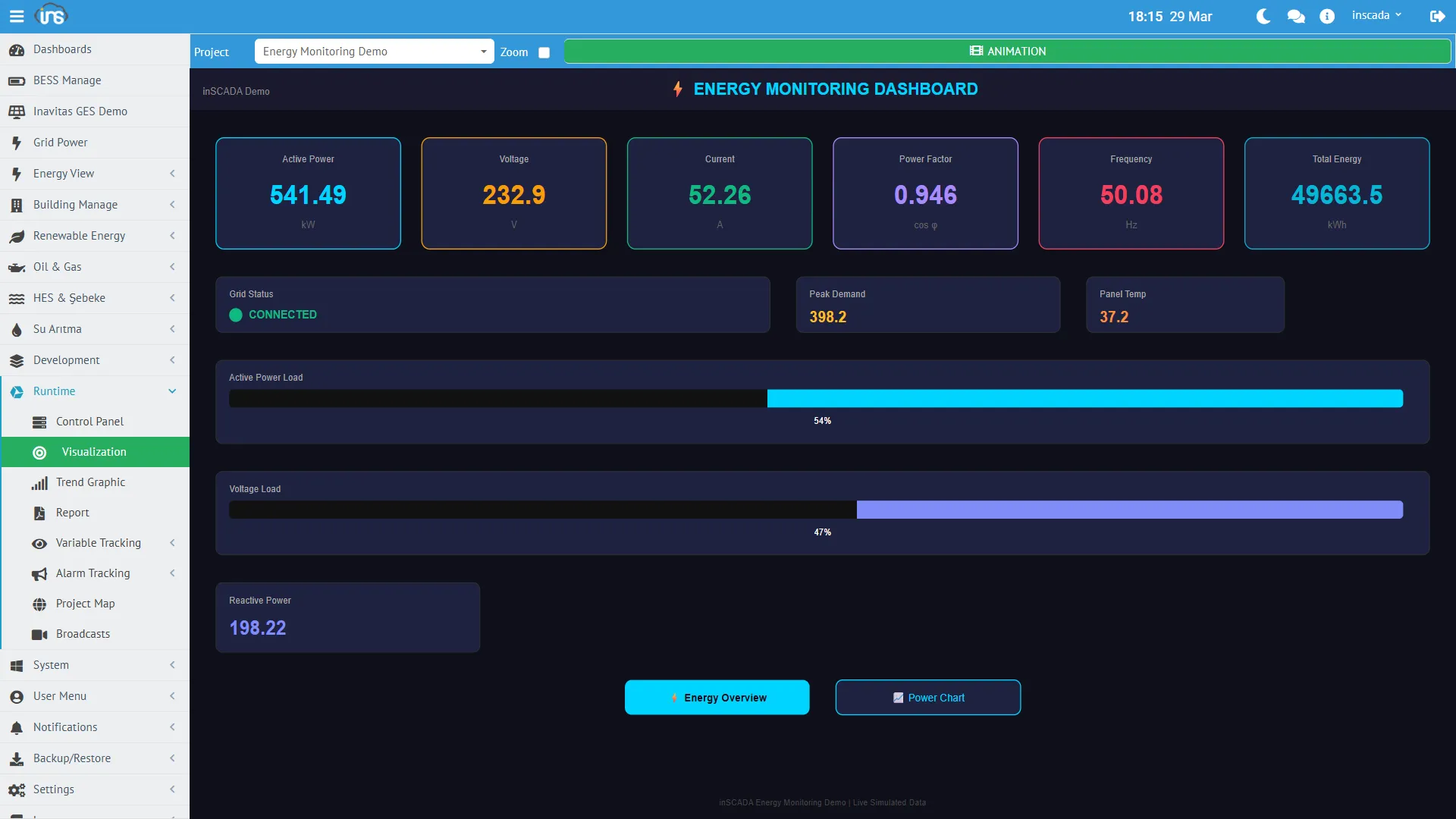
SVG-based interactive SCADA screens. Variable values are displayed in real time on the screen: color changes, motion, numeric display, on/off controls.
Faceplate — Project Level
Section titled “Faceplate — Project Level”Reusable SVG components. Frequently used visual elements such as motors, valves, and pumps can be defined as faceplates and used across multiple animation screens.
Symbol (SVG Symbol Library) — Space Level
Section titled “Symbol (SVG Symbol Library) — Space Level”SVG symbol library shared across the space. Animations and faceplates in all projects can use these symbols.
Dashboard — Space Level
Section titled “Dashboard — Space Level”Used to combine data from different projects into a single dashboard. Since it is defined at the space level, cross-project data comparison is possible.
Trend Chart — Project Level
Section titled “Trend Chart — Project Level”Charts showing the change of variables over time. Multiple variables can be shown on the same chart (Trend Tag). Used for historical data review and comparison.
Custom Menu — Space Level
Section titled “Custom Menu — Space Level”Used to create custom menu structures for users. Defined at the space level — different menus can be assigned to different roles. An operator sees only monitoring screens, a manager sees reports, and an engineer sees configuration pages.
Report — Project Level
Section titled “Report — Project Level”The reporting system produces output in PDF and Excel formats. Reports can be scheduled, sent by email, or saved to file.
Expression (Shared Formula) — Space Level
Section titled “Expression (Shared Formula) — Space Level”Calculation formulas shared across the space. Can be used by multiple variables or alarms. Enables centralized management of repeated formulas.
Project Map
Section titled “Project Map”
Displays the geographic locations of projects on a GIS map. At each project point, real-time values, alarm status, and connection status are shown as a popup.
Database Structure
Section titled “Database Structure”inSCADA uses three different database layers. Each is optimized for a different data type:
Configuration Database
Section titled “Configuration Database”Project definitions, variable settings, users, roles, alarm definitions, script code — all platform configuration data is stored here.
This data rarely changes, has a relational structure, and consistency is the priority.
Time Series Database
Section titled “Time Series Database”Variable historical values, alarm history, event logs, login attempts — all time-stamped data is stored here.
This data is continuously written, rarely updated, and queried by time range. Old data can be automatically cleaned up with retention policies.
| Data Type | Default Retention |
|---|---|
| Variable values | 365 days |
| Alarm history | 365 days |
| Event logs | 14 days |
| Login attempts | 365 days |
Real-Time Value Cache
Section titled “Real-Time Value Cache”The latest current values of all variables are kept in memory (cache). When a value is read via ins.getVariableValue() or the REST API, it returns from the cache — no database query is needed.
This provides:
- Real-time value read < 1ms
- Thousands of variables can be read simultaneously
- Web interface and scripts access the same up-to-date data
Data Flow
Section titled “Data Flow”The path data follows from a field device to the web screen:
┌─────────┐ ┌──────────┐ ┌─────────┐ ┌────────┐ ┌────────┐│ Field │───▶│Connection│───▶│ Frame │───▶│ Raw │───▶│Scaling ││ Device │ │(Protocol)│ │ (Read) │ │ Value │ │ │└─────────┘ └──────────┘ └─────────┘ └────────┘ └───┬────┘ │ ┌───────────────────────────────────────────┘ │ ▼ ┌──────────┐ ┌──────────┐ ┌──────────┐ │ Cache │───▶│ Logging │ │ Alarm │ │(Real-time)│ │(History) │ │ Check │ └────┬─────┘ └──────────┘ └──────────┘ │ ┌────────┼────────┐ ▼ ▼ ▼ ┌────────┐┌────────┐┌────────┐ │ Web ││ Script ││ REST │ │ UI ││ Engine ││ API │ └────────┘└────────┘└────────┘- Field Device — PLC, RTU, sensor, meter, etc.
- Connection — Connects to the device using the specified protocol
- Frame Read — Reads the address block at the defined period
- Raw Value — Raw data received from the device
- Scaling — Raw → Engineering conversion (if applicable)
- Cache — Current value is written to the in-memory cache
- Logging — Records to the time series database based on logging type
- Alarm Check — Threshold check based on alarm definitions
- Consumption — Web UI (WebSocket), Script Engine, REST API all read from the same cache
Write Flow (Sending Commands)
Section titled “Write Flow (Sending Commands)”UI / Script / API → Cache Update → Connection → Protocol Write → Field DeviceWhen a value is written via ins.setVariableValue() or the UI, the command is sent to the field device through the connection.
Multi-Tenant (Multiple Workspaces)
Section titled “Multi-Tenant (Multiple Workspaces)”inSCADA Instance├── Space: "energy"│ ├── Project: "SPP-01"│ ├── Project: "SPP-02"│ └── Project: "WPP-01"│├── Space: "building"│ ├── Project: "Head Office"│ └── Project: "Warehouse"│└── Space: "water" ├── Project: "Treatment Plant" └── Project: "Pump Stations"Each space has:
- Its own set of projects
- Its own user permissions
- Data independent from other spaces
Users can access multiple spaces and switch between spaces during a session.
Access and Ports
Section titled “Access and Ports”| Port | Usage |
|---|---|
| 8081 | HTTP — Web interface and REST API |
| 8082 | HTTPS — Web interface and REST API (encrypted) |
The web interface is accessible from any modern browser. It also works responsively on mobile devices (tablets, phones). No additional client software installation is required.
Configuration details: Configuration →