
Alarm Management
The alarm system detects, records, and notifies abnormal conditions in variable values. Alarms are organized in groups, and each group is bound to a project.
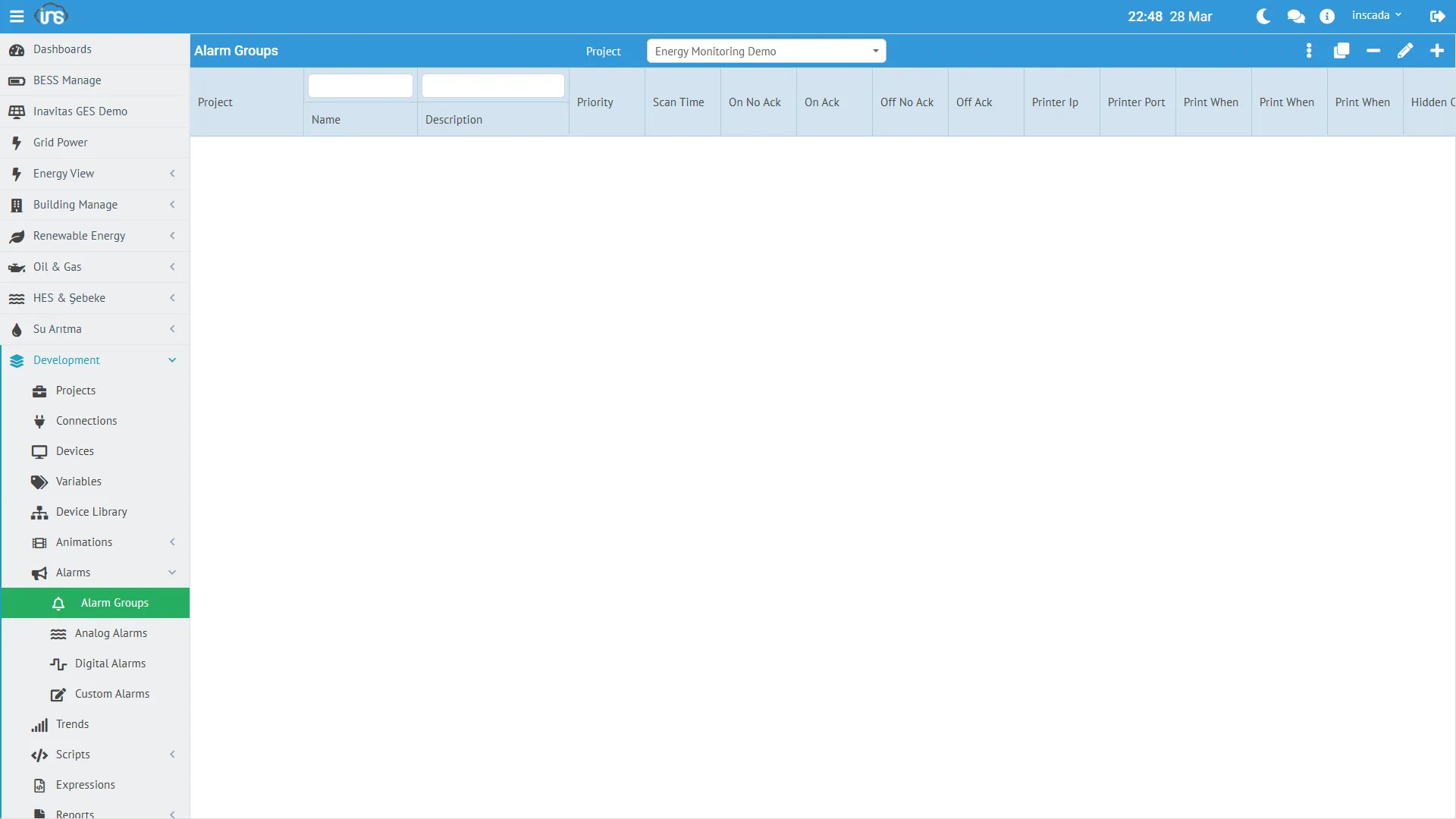
Alarm Group
Section titled “Alarm Group”An alarm group is a container that organizes alarm definitions and sets common behavior parameters.
Creating an Alarm Group
Section titled “Creating an Alarm Group”Menu: Runtime → Alarms → Alarm Groups → New Group
| Field | Required | Description |
|---|---|---|
| Name | Yes | Group name |
| Scan Time (ms) | Yes | Alarm check period (min: 100ms) |
| Priority | Yes | Priority level (1-255) |
| Description | No | Description |
Alarm Group Advanced Settings
Section titled “Alarm Group Advanced Settings”| Field | Description |
|---|---|
| On Script | Script to run when an alarm fires |
| Off Script | Script to run when an alarm clears |
| Ack Script | Script to run when an alarm is acknowledged |
| On (No Ack) Color | Fired, not acknowledged color |
| On (Ack) Color | Fired, acknowledged color |
| Off (No Ack) Color | Cleared, not acknowledged color |
| Off (Ack) Color | Cleared, acknowledged color |
| Hidden on Monitor | Hide on alarm monitor |
Printer Integration
Section titled “Printer Integration”Alarm events can be sent directly to a network printer:
| Field | Description |
|---|---|
| Printer IP | Printer IP address |
| Printer Port | Printer port number |
| Print When On | Print when fired |
| Print When Off | Print when cleared |
| Print When Ack | Print when acknowledged |
Alarm Types
Section titled “Alarm Types”Analog Alarm
Section titled “Analog Alarm”Monitors threshold values of numeric variables.
| Threshold | Description | Example |
|---|---|---|
| High-High | Very high (critical) | Temperature > 90°C |
| High | High (warning) | Temperature > 70°C |
| Low | Low (warning) | Pressure < 2 bar |
| Low-Low | Very low (critical) | Pressure < 1 bar |
A separate alarm definition is created for each threshold. Hysteresis (deadband) value prevents alarm chattering.
Digital Alarm
Section titled “Digital Alarm”Monitors state changes of Boolean variables.
| Condition | Description |
|---|---|
| ON = Alarm | Alarm fires when value is true |
| OFF = Normal | Alarm clears when value is false |
Examples: Motor fault signal, door open contact, emergency stop button.
Custom Alarm
Section titled “Custom Alarm”Define custom alarm conditions using JavaScript expressions.
// Alarm condition dependent on multiple variablesvar power = ins.getVariableValue("ActivePower_kW").value;var temp = ins.getVariableValue("Temperature_C").value;return power > 500 && temp > 70; // alarm if both are highAlarm Lifecycle
Section titled “Alarm Lifecycle”Normal → Fired → Acknowledged → OffState Transitions
Section titled “State Transitions”| Transition | Triggered By | Description |
|---|---|---|
| Normal → Fired | System | Alarm condition is met |
| Fired → Acknowledged | Operator | Operator acknowledged the alarm |
| Fired/Ack → Off | System | Alarm condition is no longer met |
| Fired → Force Off | Operator | Alarm is force-cleared |
Alarm Color Codes
Section titled “Alarm Color Codes”| State | Default | Meaning |
|---|---|---|
| Fired + No Ack | Red flashing | Attention required |
| Fired + Ack | Red solid | Aware, still active |
| Off + No Ack | Yellow | Cleared but not seen |
| Off + Ack | Normal | Completed |
Alarm Monitoring
Section titled “Alarm Monitoring”Alarm Monitor
Section titled “Alarm Monitor”Menu: Runtime → Alarm Tracking → Alarm Monitor
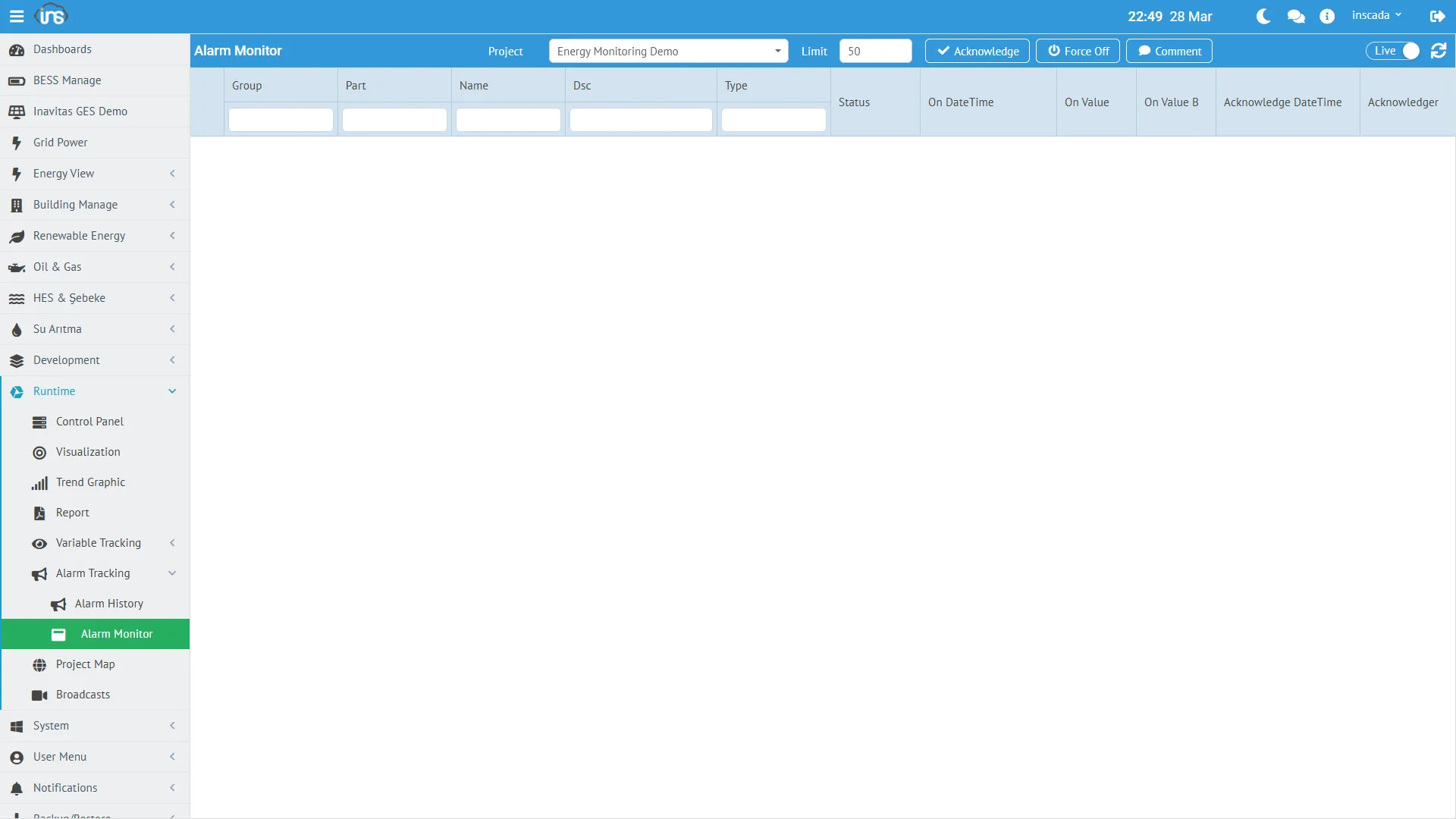
Displays active alarms in real time. From this screen, operators can:
- View alarms
- Acknowledge alarms
- Force-clear alarms (Force Off)
Alarm Tracking
Section titled “Alarm Tracking”Menu: Visualization → Alarm Tracking
Queries alarm history by date range. Each alarm record contains:
| Field | Description |
|---|---|
| Alarm name | Which alarm fired |
| Fire time | When it fired |
| Off time | When it cleared |
| Acknowledged by | Who acknowledged it |
| Duration | How long it lasted |
| Value | Value at the time of firing |
Managing Alarms with Scripts
Section titled “Managing Alarms with Scripts”// Last fired alarmsvar alarms = ins.getLastFiredAlarms(0, 10);// → [] (empty array if no active alarms)
// Alarm history by date rangevar end = ins.now();var start = ins.getDate(end.getTime() - 86400000);var history = ins.getLastFiredAlarmsByDate(start, end, true, 100);
// Deactivate alarm group (maintenance mode)ins.deactivateAlarmGroup("Temperature_Alarms");
// Reactivate after maintenanceins.activateAlarmGroup("Temperature_Alarms");Detailed API: Alarm API → | REST API →